1. Introduction
StageNotes est un systeme professionnel de diffusion de notes speaker pour Microsoft PowerPoint. Il affiche les notes du presentateur sur un ou plusieurs ecrans de confort (comfort monitors) en temps reel, via le reseau local.
Cas d'utilisation
- Conferences : Le speaker voit ses notes sur un moniteur au sol ou sur pupitre
- Spectacles : Les acteurs/comediens lisent leur texte sur un retour scene
- Cultes : Le pasteur suit son plan de predication sur un ecran dedie
- Formations : Le formateur garde le fil de son cours sans regarder le PC
- Evenements corporate : Le presentateur est guide par ses notes en temps reel
Architecture
Composants
- Add-in PowerPoint (serveur) : s'integre au ruban PowerPoint, extrait et diffuse les notes en temps reel
- Client Speaker (teleprompter web) : page HTML accessible depuis n'importe quel navigateur, tablette ou smartphone
- Tableau de bord Admin : interface de controle a distance pour la regie (timer, visibilite, messages flash, navigation, themes)
StageNotes is a professional speaker notes broadcasting system for Microsoft PowerPoint. It displays presenter notes on one or more comfort monitors in real time, over the local network.
Use Cases
- Conferences: The speaker reads notes on a floor or podium monitor
- Performances: Actors/comedians read their script on a stage return monitor
- Worship services: The pastor follows their sermon outline on a dedicated screen
- Training sessions: The instructor keeps track of their course without looking at the PC
- Corporate events: The presenter is guided by real-time notes
Architecture
Components
- PowerPoint Add-in (server): integrates into the PowerPoint ribbon, extracts and broadcasts notes in real time
- Speaker Client (web teleprompter): HTML page accessible from any browser, tablet or smartphone
- Admin Dashboard: remote control interface for stage management (timer, visibility, flash messages, navigation, themes)
2. Installation
Prerequis
- Windows 10 (version 1903+) ou Windows 11
- Microsoft PowerPoint 2016, 2019, 2021 ou Microsoft 365
- .NET Framework 4.8 (inclus dans Windows 10 1903+)
- VSTO Runtime (installe automatiquement avec l'add-in)
Installation de l'Add-in PowerPoint
- Fermez PowerPoint
- Executez le fichier
Installer StageNotes.bat - Suivez les instructions a l'ecran
- Relancez PowerPoint
- Verifiez que l'onglet StageNotes apparait dans le ruban
Client Speaker et Admin (sans installation)
Les interfaces Speaker et Admin sont des pages web servies directement par l'add-in PowerPoint. Aucune installation supplementaire n'est necessaire :
- Client Speaker :
http://[IP-du-serveur]:9502 - Tableau de bord Admin :
http://[IP-du-serveur]:9502/admin
Prerequisites
- Windows 10 (version 1903+) or Windows 11
- Microsoft PowerPoint 2016, 2019, 2021 or Microsoft 365
- .NET Framework 4.8 (included in Windows 10 1903+)
- VSTO Runtime (automatically installed with the add-in)
PowerPoint Add-in Installation
- Close PowerPoint
- Run the
Installer StageNotes.batfile - Follow the on-screen instructions
- Restart PowerPoint
- Verify that the StageNotes tab appears in the ribbon
Speaker Client and Admin (no installation)
The Speaker and Admin interfaces are web pages served directly by the PowerPoint add-in. No additional installation is needed:
- Speaker Client:
http://[server-IP]:9502 - Admin Dashboard:
http://[server-IP]:9502/admin
3. Demarrage rapide Quick Start
Le ruban StageNotes utilise des badges numerotes verts pour guider les etapes :
1 Demarrer la diffusion
- Ouvrez PowerPoint avec votre presentation
- Allez dans l'onglet StageNotes
- Cliquez sur le badge 1 ou le bouton Diffuser dans le groupe "Diffusion"
- L'indicateur passe a Etat : Actif, l'adresse IP et le nombre de clients s'affichent dans le groupe "Reseau"
2 Ouvrir les interfaces web
- Cliquez sur le badge 2 dans le groupe "Interface" pour ouvrir automatiquement les pages Admin et Client dans deux fenetres de navigateur separees
- Ou cliquez individuellement sur Admin, Client ou QR Code
- Depuis un autre appareil (tablette, smartphone), ouvrez
http://[IP]:9502
Presenter
- Lancez votre diaporama dans PowerPoint (F5)
- Les notes s'affichent automatiquement sur tous les clients connectes
- A chaque changement de slide, les notes se mettent a jour en temps reel
- Controlez le timer, la visibilite et les messages depuis la page Admin
The StageNotes ribbon uses green numbered badges to guide the steps:
1 Start Broadcasting
- Open PowerPoint with your presentation
- Go to the StageNotes tab
- Click the 1 badge or the Broadcast button in the "Broadcast" group
- The indicator changes to Status: Active, the IP address and client count appear in the "Network" group
2 Open the Web Interfaces
- Click the 2 badge in the "Interface" group to automatically open both Admin and Client pages in two separate browser windows
- Or click individually on Admin, Client or QR Code
- From another device (tablet, smartphone), open
http://[IP]:9502
Present
- Start your slideshow in PowerPoint (F5)
- Notes are automatically displayed on all connected clients
- Each slide change updates the notes in real time
- Control the timer, visibility and messages from the Admin page


4. Le ruban PowerPoint The PowerPoint Ribbon
Le ruban StageNotes est organise en 6 groupes, de gauche a droite :
1 Groupe Diffusion
- Badge vert 1 : Clic rapide pour demarrer/arreter la diffusion
- Diffuser (toggle) : Active ou desactive la diffusion des notes sur le reseau
- Etat : Affiche "Actif" ou "Inactif"
2 Groupe Interface
- Badge vert 2 : Ouvre Admin + Client dans deux fenetres separees
- Admin : Ouvre le tableau de bord de controle dans le navigateur
- Client : Ouvre la vue teleprompter dans le navigateur
- QR Code : Affiche un QR code pour connecter facilement un smartphone/tablette
Groupe Reseau
- Canal : Selecteur de canal 1-10 (pour isoler les presentations simultanees)
- Clients : Nombre de clients connectes en temps reel
- IP : L'adresse IP a communiquer aux clients
Groupe Outils
- Exporter notes : Exporte toutes les notes de la presentation en fichier HTML
- Repetition : Lance le mode repetition (navigation slide sans diaporama)
Groupe Licence
- Licence : Ouvre la fenetre de gestion de licence (activation, essai, achat)
- Indicateur : Affiche le type de licence et les jours restants en mode essai
Groupe Configuration
- Parametres : Ouvre la fenetre de reglages avances (ports, interface reseau)
- A propos : Informations sur la version
- Langue : Selecteur Francais / English pour l'ensemble de l'interface
The StageNotes ribbon is organized into 6 groups, from left to right:
1 Broadcast Group
- Green badge 1: Quick click to start/stop broadcasting
- Broadcast (toggle): Enable or disable notes broadcasting over the network
- Status: Shows "Active" or "Inactive"
2 Interface Group
- Green badge 2: Opens Admin + Client in two separate browser windows
- Admin: Opens the control dashboard in the browser
- Client: Opens the teleprompter view in the browser
- QR Code: Displays a QR code for easy smartphone/tablet connection
Network Group
- Channel: Channel selector 1-10 (to isolate simultaneous presentations)
- Clients: Number of connected clients in real time
- IP: The IP address to share with clients
Tools Group
- Export notes: Export all presentation notes as an HTML file
- Rehearsal: Start rehearsal mode (slide navigation without slideshow)
License Group
- License: Opens the license management window (activation, trial, purchase)
- Indicator: Shows the license type and remaining days in trial mode
Settings Group
- Settings: Opens the advanced settings window (ports, network interface)
- About: Version information
- Language: French / English selector for the entire interface
5. Tableau de bord Admin Admin Dashboard
Acces
Ouvrez http://[IP]:9502/admin ou cliquez sur Admin dans le ruban PowerPoint.
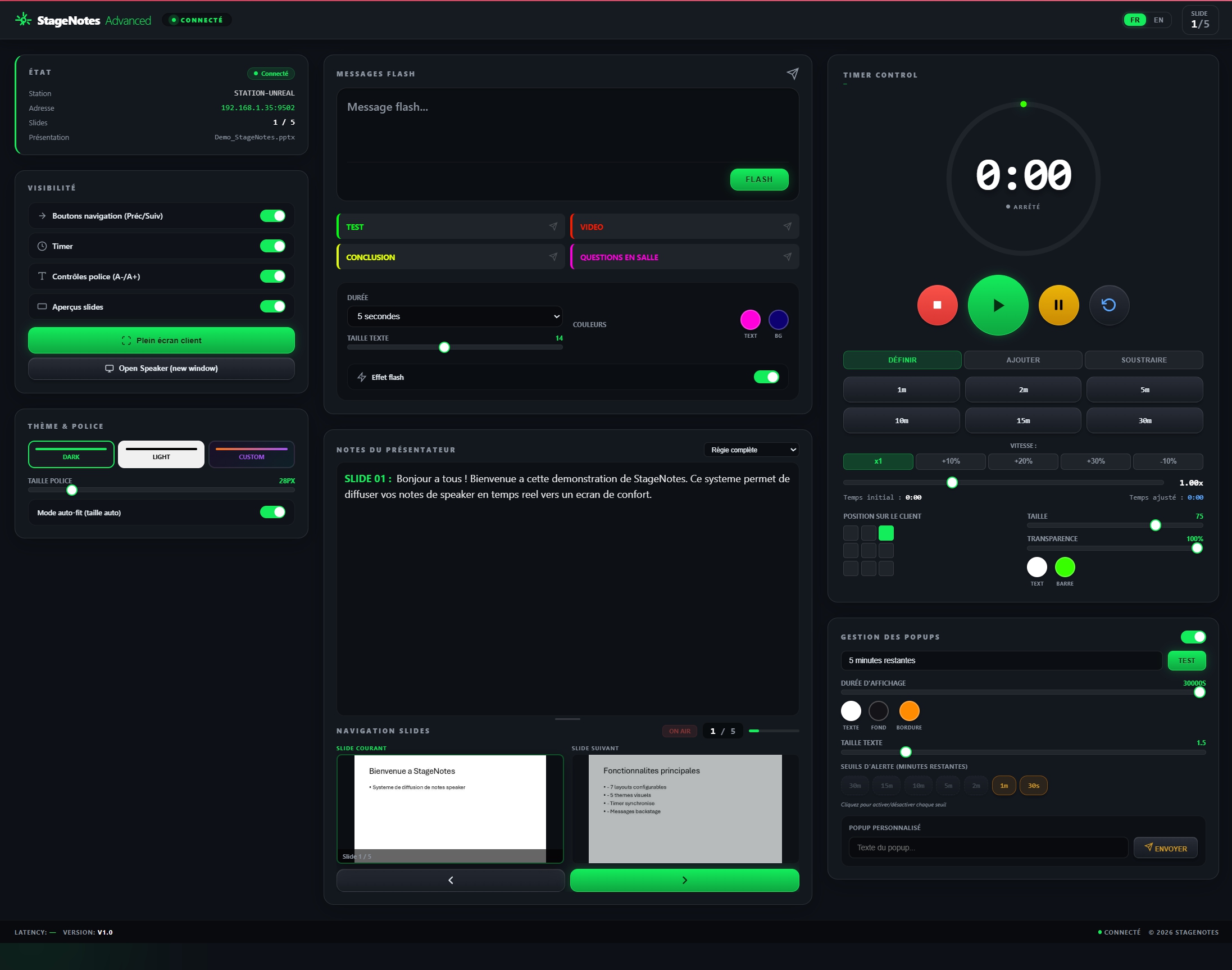
Le tableau de bord est organise en 3 colonnes avec un header affichant le statut de connexion et un selecteur de langue FR/EN :
Colonne gauche
Etat
Informations en temps reel : nom de la station, adresse IP + port, slide courant / total, nom de la presentation.
Visibilite
Toggles ON/OFF pour chaque element du client Speaker :
- Boutons navigation (Prec/Suiv)
- Timer
- Controles police (A-/A+)
- Apercus slides
Boutons d'action :
- Plein ecran client : Demande au client Speaker de passer en plein ecran (un overlay s'affiche invitant l'utilisateur a cliquer)
- Open Speaker (new window) : Ouvre une nouvelle fenetre navigateur avec le client Speaker
Theme & Police
- Themes : Dark, Light, Custom (couleur personnalisee)
- Taille police : Slider de 14 a 96px
- Mode auto-fit : La police s'ajuste automatiquement pour que le texte tienne dans la fenetre
Colonne centrale
Messages Flash
- Champ de saisie : Tapez un message et cliquez "Flash" pour l'envoyer en popup sur le client Speaker
- Presets editables : 4 boutons rapides personnalisables (Test, Video, Conclusion, Questions en salle)
- Duree : 5 secondes (configurable)
- Couleurs : Couleur du texte et du fond personnalisables
- Taille texte : Slider dedie
- Effet flash : Toggle pour activer/desactiver l'animation clignotante
Notes du presentateur
- Affichage des notes du slide en cours, editables en temps reel
- Selecteur de mode : "Regle complete" ou autres vues
- Les modifications sont envoyees en direct au client Speaker
Navigation Slides
- Badge ON AIR indiquant la diffusion active
- Indicateur slide courant / total + barre de progression
- Apercu du slide courant et du slide suivant
- Boutons Precedent / Suivant pour piloter la presentation a distance
Colonne droite
Timer Control
- Grand affichage digital avec anneau de progression
- Boutons : Stop, Play, Pause, Reset
- Modes : Definir, Ajouter, Soustraire
- Presets rapides : 1m, 2m, 5m, 10m, 15m, 30m
- Vitesse : x1, +10%, +20%, +30%, -10%
- Position sur le client : Grille 3x3 pour placer le timer
- Taille et transparence : Sliders pour ajuster le timer overlay
- Couleurs : Couleur du texte et de la barre personnalisables
Gestion des Popups
- Toggle ON/OFF pour activer les popups
- Seuils d'alerte (minutes restantes) : boutons 30m, 15m, 10m, 5m, 3m, 2m, 1m, 30s
- Les seuils actifs declenchent un popup automatique sur le client Speaker
- Couleurs popup : Texte, fond, bordure personnalisables
- Popup personnalise : Champ texte libre + bouton "Envoyer"
Access
Open http://[IP]:9502/admin or click Admin in the PowerPoint ribbon.
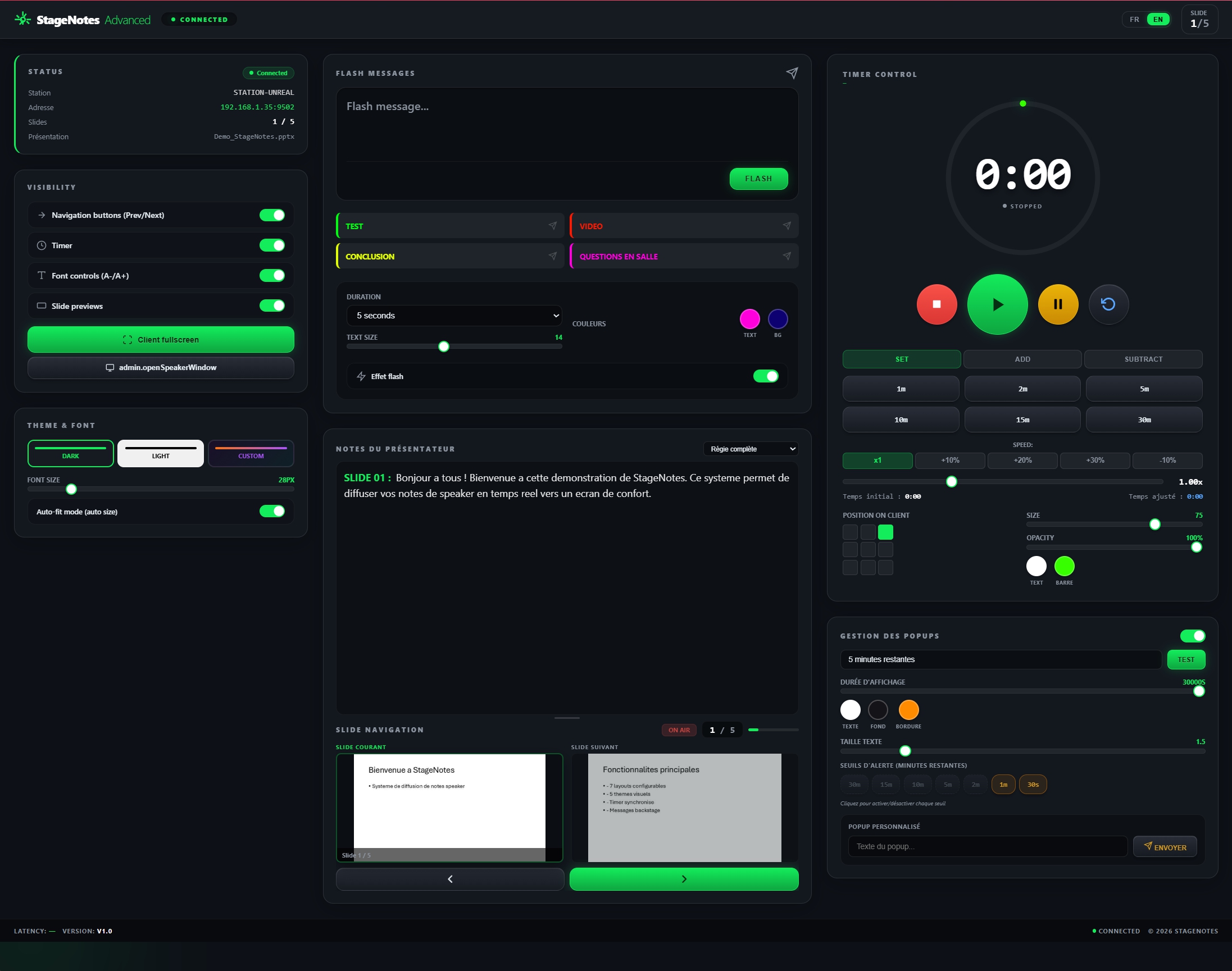
The dashboard is organized into 3 columns with a header showing connection status and a FR/EN language selector:
Left Column
Status
Real-time information: station name, IP address + port, current slide / total, presentation name.
Visibility
ON/OFF toggles for each Speaker client element:
- Navigation buttons (Prev/Next)
- Timer
- Font controls (A-/A+)
- Slide previews
Action buttons:
- Client fullscreen: Requests the Speaker client to go fullscreen (an overlay appears inviting the user to click)
- Open Speaker (new window): Opens a new browser window with the Speaker client
Theme & Font
- Themes: Dark, Light, Custom (custom color)
- Font size: Slider from 14 to 96px
- Auto-fit mode: Font automatically adjusts so text fits in the window
Center Column
Flash Messages
- Input field: Type a message and click "Flash" to send it as a popup on the Speaker client
- Editable presets: 4 customizable quick buttons (Test, Video, Conclusion, Audience Questions)
- Duration: 5 seconds (configurable)
- Colors: Customizable text and background colors
- Text size: Dedicated slider
- Flash effect: Toggle to enable/disable blinking animation
Presenter Notes
- Display of the current slide notes, editable in real time
- View mode selector: "Full view" or other views
- Changes are sent live to the Speaker client
Slide Navigation
- ON AIR badge indicating active broadcast
- Current slide / total indicator + progress bar
- Preview of the current slide and next slide
- Previous / Next buttons to remotely control the presentation
Right Column
Timer Control
- Large digital display with progress ring
- Buttons: Stop, Play, Pause, Reset
- Modes: Set, Add, Subtract
- Quick presets: 1m, 2m, 5m, 10m, 15m, 30m
- Speed: x1, +10%, +20%, +30%, -10%
- Position on client: 3x3 grid to place the timer
- Size and opacity: Sliders to adjust the timer overlay
- Colors: Customizable text and bar colors
Popup Management
- ON/OFF toggle for popups
- Alert thresholds (remaining minutes): buttons 30m, 15m, 10m, 5m, 3m, 2m, 1m, 30s
- Active thresholds trigger an automatic popup on the Speaker client
- Popup colors: Customizable text, background, border
- Custom popup: Free text field + "Send" button
6. Client Speaker (Teleprompter) Speaker Client (Teleprompter)
Acces
Ouvrez http://[IP]:9502 dans un navigateur, ou cliquez sur Client dans le ruban PowerPoint.
Interface
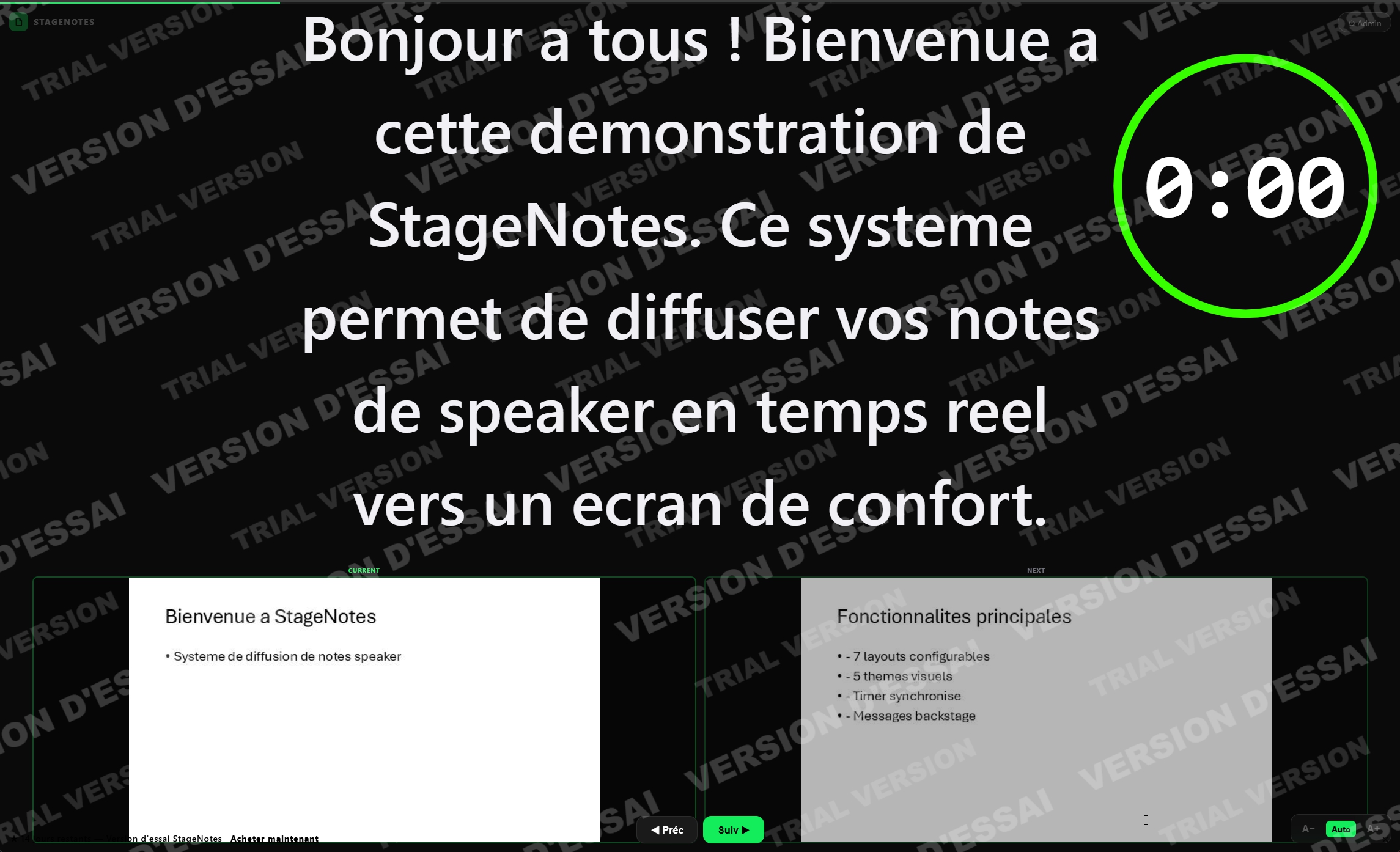
Le client Speaker est concu comme un teleprompter professionnel :
- Notes en grand format : Le texte occupe l'essentiel de l'ecran avec une typographie grande et lisible
- Timer overlay : Grand timer circulaire avec anneau de progression (vert > orange > rouge)
- Apercu slides : Slide courant et slide suivant en bas de l'ecran (masquable depuis l'admin)
- Boutons navigation : Precedent / Suivant pour piloter la presentation (masquables)
- Controles police : Boutons A- / A+ et mode Auto pour ajuster la taille du texte
- Fond noir : Ideal pour l'utilisation sur scene (pas de fuite de lumiere)
Messages Flash
Les messages envoyes depuis l'admin s'affichent en popup plein ecran avec animation. Ideal pour les cues de regie ("5 minutes restantes", "Accelerez", etc.).
Popups automatiques
Si des seuils d'alerte sont actives dans l'admin, des popups s'affichent automatiquement quand le timer atteint ces seuils (ex: popup a 5 min, 1 min, 30s).
Plein ecran
A la connexion, le client propose de passer en plein ecran. Vous pouvez aussi :
- Appuyer sur F ou F11
- Utiliser le bouton "Plein ecran client" depuis l'admin
Access
Open http://[IP]:9502 in a browser, or click Client in the PowerPoint ribbon.
Interface
The Speaker client is designed as a professional teleprompter:
- Large format notes: Text takes up most of the screen with large, readable typography
- Timer overlay: Large circular timer with progress ring (green > orange > red)
- Slide previews: Current and next slide at the bottom of the screen (can be hidden from admin)
- Navigation buttons: Previous / Next to control the presentation (can be hidden)
- Font controls: A- / A+ buttons and Auto mode to adjust text size
- Black background: Ideal for stage use (no light bleed)
Flash Messages
Messages sent from the admin appear as fullscreen popups with animation. Ideal for stage cues ("5 minutes remaining", "Speed up", etc.).
Automatic Popups
If alert thresholds are enabled in the admin, popups appear automatically when the timer reaches these thresholds (e.g., popup at 5 min, 1 min, 30s).
Fullscreen
On connection, the client offers to go fullscreen. You can also:
- Press F or F11
- Use the "Client fullscreen" button from the admin
7. Licence et essai gratuit License & Free Trial
Periode d'essai
StageNotes offre une periode d'essai gratuite de 14 jours avec toutes les fonctionnalites. Pendant l'essai, un filigrane "VERSION D'ESSAI" est affiche sur le client Speaker.
Fonctions bloquees apres l'essai
A l'expiration de la periode d'essai, les fonctions suivantes sont desactivees :
- Diffusion des notes (demarrage bloque)
- Export des notes
- Mode Repetition
Une boite de dialogue vous propose d'acheter une licence.
Activation
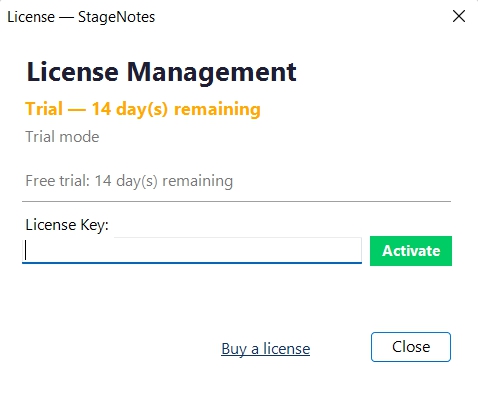
- Cliquez sur Licence dans le ruban StageNotes
- Entrez votre cle de licence dans le champ "License Key"
- Cliquez sur Activate
- Le statut passe a "Active" et le filigrane disparait
Trial Period
StageNotes offers a free 14-day trial period with all features. During the trial, a "TRIAL VERSION" watermark is displayed on the Speaker client.
Functions Blocked After Trial
When the trial period expires, the following functions are disabled:
- Broadcasting notes (start blocked)
- Notes export
- Rehearsal mode
A dialog box will prompt you to purchase a license.
Activation
- Click License in the StageNotes ribbon
- Enter your license key in the "License Key" field
- Click Activate
- The status changes to "Active" and the watermark disappears
8. Marqueurs et fonctions avancees Markers & Advanced Features
Marqueurs dans les notes PowerPoint
Inserez des commandes speciales dans vos notes pour automatiser des actions lors du diaporama :
Markers in PowerPoint Notes
Insert special commands in your notes to automate actions during the slideshow:
| Marqueur | Action |
|---|---|
[TIMER:START] | Demarre le timer |
[TIMER:STOP] | Arrete le timer |
[TIMER:RESET] | Remet le timer a zero |
[TIMER:SET:300] | Configure le timer a 300 secondes (5 minutes) |
[TIMER:SET:900] | Configure le timer a 900 secondes (15 minutes) |
[MSG:Votre message] | Envoie un message backstage automatiquement |
[PAUSE] | Marque un point de pause |
[CUE:Texte] | Envoie un cue technique |
| Marker | Action |
|---|---|
[TIMER:START] | Starts the timer |
[TIMER:STOP] | Stops the timer |
[TIMER:RESET] | Resets the timer to zero |
[TIMER:SET:300] | Sets the timer to 300 seconds (5 minutes) |
[TIMER:SET:900] | Sets the timer to 900 seconds (15 minutes) |
[MSG:Your message] | Sends a backstage message automatically |
[PAUSE] | Marks a pause point |
[CUE:Text] | Sends a technical cue |
[TIMER:SET:N] est en secondes. Exemples : 300 = 5 min, 600 = 10 min, 1800 = 30 min. Les marqueurs sont supprimes du texte affiche sur le client Speaker.
[TIMER:SET:N] is in seconds. Examples: 300 = 5 min, 600 = 10 min, 1800 = 30 min. Markers are removed from the text displayed on the Speaker client.
Export des notes
Depuis le ruban StageNotes, groupe Outils, cliquez Exporter notes. Les notes de toutes les slides sont exportees en fichier HTML formate.
Mode repetition
Permet de tester l'affichage des notes sans lancer le diaporama. Cliquez Repetition dans le ruban, puis naviguez entre les slides avec les fleches.
Notes Export
In the StageNotes ribbon, Tools group, click Export notes. All slide notes are exported as a formatted HTML file.
Rehearsal Mode
Allows testing the notes display without starting a slideshow. Click Rehearsal in the ribbon, then navigate slides with the arrow keys.
9. Configuration reseau Network Configuration
Ports utilises
Ports Used
| Port | Protocole | Usage |
|---|---|---|
| 9500 | TCP | Communication client desktop (legacy) |
| 9501 | UDP | Decouverte automatique (multicast) |
| 9502 | TCP | HTTP + WebSocket (client web + admin) |
| Port | Protocol | Usage |
|---|---|---|
| 9500 | TCP | Desktop client communication (legacy) |
| 9501 | UDP | Automatic discovery (multicast) |
| 9502 | TCP | HTTP + WebSocket (web client + admin) |
Pare-feu Windows
- Ouvrez le Pare-feu Windows avec fonctionnalites avancees
- Creez une regle entrante pour le port TCP 9502 (principal)
- Optionnel : ports TCP 9500 et UDP 9501 (client desktop + decouverte)
- Autorisez le profil "Prive" (reseau local)
Reseau recommande
- Ethernet filaire : Recommande pour la fiabilite (latence < 5ms)
- WiFi 5 GHz : Acceptable (latence < 50ms)
- WiFi 2.4 GHz : Fonctionnel mais peut etre instable dans les grandes salles
Windows Firewall
- Open Windows Firewall with Advanced Security
- Create an inbound rule for TCP port 9502 (main)
- Optional: TCP port 9500 and UDP port 9501 (desktop client + discovery)
- Allow the "Private" profile (local network)
Recommended Network
- Wired Ethernet: Recommended for reliability (latency < 5ms)
- WiFi 5 GHz: Acceptable (latency < 50ms)
- WiFi 2.4 GHz: Works but may be unstable in large venues
10. Raccourcis clavier Keyboard Shortcuts
Client Speaker (navigateur)
Speaker Client (browser)
| Raccourci | Action |
|---|---|
| F | Basculer en plein ecran / quitter |
| F11 | Plein ecran (navigateur) |
| Echap | Quitter le plein ecran |
| Fleche droite | Slide suivant |
| Fleche gauche | Slide precedent |
| + / - | Augmenter / diminuer la taille de police |
| Shortcut | Action |
|---|---|
| F | Toggle fullscreen on/off |
| F11 | Fullscreen (browser) |
| Escape | Exit fullscreen |
| Right arrow | Next slide |
| Left arrow | Previous slide |
| + / - | Increase / decrease font size |
Tableau de bord Admin (navigateur)
Admin Dashboard (browser)
| Raccourci | Action |
|---|---|
| Espace | Demarrer / mettre en pause le timer |
| R | Reset le timer |
| Fleche droite | Slide suivant |
| Fleche gauche | Slide precedent |
| Shortcut | Action |
|---|---|
| Space | Start / pause timer |
| R | Reset timer |
| Right arrow | Next slide |
| Left arrow | Previous slide |
11. Depannage Troubleshooting
L'add-in ne s'affiche pas dans PowerPoint
- Verifiez dans Fichier > Options > Complements
- Si desactive, reactivez dans "Complements COM"
- Redemarrez PowerPoint
Le client ne se connecte pas
- Verifiez que la diffusion est demarree (Etat : Actif dans le ruban)
- Verifiez que les deux appareils sont sur le meme reseau local
- Verifiez que le pare-feu autorise le port 9502
- Essayez
http://[IP]:9502directement dans le navigateur
Notes non affichees pendant le diaporama
- Verifiez que la diffusion est demarree (badge vert 1 ou bouton Diffuser)
- Verifiez que le client affiche "Connecte" (point vert)
- Verifiez que le diaporama est en cours (F5 dans PowerPoint)
Le bouton "Plein ecran" de l'admin ne fonctionne pas
Pour des raisons de securite du navigateur, le plein ecran necessite une interaction utilisateur directe. Quand vous cliquez "Plein ecran" depuis l'admin, un overlay s'affiche sur le client Speaker — l'utilisateur doit cliquer dessus pour confirmer le passage en plein ecran.
Le timer change de couleur a des valeurs inattendues
Verifiez les marqueurs dans les notes. [TIMER:SET:N] utilise des secondes. Pour 5 minutes : [TIMER:SET:300] (et non [TIMER:SET:5]).
Latence importante
- Preferez une connexion Ethernet filaire
- Verifiez qu'aucun VPN n'interfere
- Fermez les applications gourmandes en bande passante
- Consultez la latence dans le footer du tableau de bord Admin
La licence a expire
Si la periode d'essai de 14 jours a expire, les fonctions principales (diffusion, export, repetition) sont bloquees. Cliquez sur Licence dans le ruban pour acheter ou activer une licence.
Fichiers de log
Les logs sont dans : %LOCALAPPDATA%\StageNotes\logs\
Add-in doesn't show in PowerPoint
- Check in File > Options > Add-ins
- If disabled, re-enable in "COM Add-ins"
- Restart PowerPoint
Client doesn't connect
- Verify broadcasting is started (Status: Active in the ribbon)
- Verify both devices are on the same local network
- Check that the firewall allows port 9502
- Try
http://[IP]:9502directly in the browser
Notes not displayed during slideshow
- Verify broadcasting is started (green badge 1 or Broadcast button)
- Verify the client shows "Connected" (green dot)
- Verify the slideshow is running (F5 in PowerPoint)
Admin "Fullscreen" button doesn't work
For browser security reasons, fullscreen requires a direct user interaction. When you click "Fullscreen" from the admin, an overlay appears on the Speaker client — the user must click on it to confirm fullscreen mode.
Timer changes color at unexpected values
Check the markers in your notes. [TIMER:SET:N] uses seconds. For 5 minutes: [TIMER:SET:300] (not [TIMER:SET:5]).
High latency
- Prefer a wired Ethernet connection
- Check that no VPN is interfering
- Close bandwidth-heavy applications
- Check the latency in the Admin dashboard footer
License has expired
If the 14-day trial period has expired, the main functions (broadcasting, export, rehearsal) are blocked. Click License in the ribbon to purchase or activate a license.
Log files
Logs are located in: %LOCALAPPDATA%\StageNotes\logs\