FixtureForge User Manual
Version 1.0.0The complete guide to creating, editing, and managing professional GDTF and grandMA3 fixture files with FixtureForge.
GDTF Editor
Complete GDTF 1.2 specification support with interactive 3D geometry viewer.
grandMA3 Support
Native editing and creation of grandMA3 fixture format files.
Batch Conversion
Convert between GDTF and MA3 formats instantly, including batch processing.
31,000+ Fixtures
Access the complete grandMA3 fixture library with 586 manufacturers.
What is FixtureForge?
FixtureForge is a professional desktop application for creating and editing lighting fixture definition files used in the entertainment industry. It supports two major formats:
- GDTF (General Device Type Format) - The open standard for describing lighting fixtures, supported by major lighting consoles and visualizers.
- grandMA3 Library - The proprietary format used by MA Lighting's grandMA3 console series.
Whether you're a lighting designer needing to create custom fixtures, a manufacturer building official fixture profiles, or a programmer maintaining a fixture library, FixtureForge provides all the tools you need in one powerful application.
FixtureForge works completely offline. No internet connection is required once the application is installed, making it perfect for use on-site at venues or in programming environments.
Installation
System Requirements
| Requirement | Minimum | Recommended |
|---|---|---|
| Operating System | Windows 10 (64-bit) | Windows 11 (64-bit) |
| Processor | Intel Core i3 / AMD Ryzen 3 | Intel Core i5 / AMD Ryzen 5 or higher |
| RAM | 4 GB | 8 GB or more |
| Storage | 500 MB available | 2 GB available (for library) |
| Display | 1280 × 720 | 1920 × 1080 or higher |
| Graphics | DirectX 11 compatible | Dedicated GPU for 3D viewer |
Installation Steps
Download the Installer
Download the latest version of FixtureForge from the official website. The installer is a standard Windows executable (.exe).
Run the Installer
Double-click the downloaded file and follow the installation wizard. You may need administrator privileges.
Choose Installation Location
Select where you want to install FixtureForge. The default location is C:\Program Files\FixtureForge.
Complete Installation
Wait for the installation to complete and launch FixtureForge from the Start Menu or desktop shortcut.
FixtureForge can also be run as a portable application. Simply extract the ZIP archive to any folder and run FixtureForge.exe directly.
First Steps
Welcome Dashboard
When you launch FixtureForge, you'll be greeted by the Welcome Dashboard. This is your starting point for all operations:

Create New GDTF
Start a new GDTF fixture file from scratch with a blank template.
Open File
Open an existing GDTF or MA3 fixture file for editing.
grandMA3 Library
Browse and search the built-in library of 31,000+ fixtures.
GDTF Share
Connect to the official GDTF Share cloud library.
Converter
Convert fixtures between GDTF and MA3 formats.
Fixture Finder
Search fixtures by DMX attribute sequence.
Creating Your First Fixture
Click "Create New GDTF"
From the Welcome Dashboard, select the "Create New GDTF" option to start with a blank fixture template.
Fill in General Information
Enter the fixture name, manufacturer, and other basic information. The GUID will be generated automatically.
Define Geometry
Create the geometry tree structure representing the physical parts of your fixture (base, yoke, head, etc.).
Create DMX Modes
Add DMX modes and define the channels, attributes, and physical ranges for each mode.
Add Wheels (if needed)
Define color wheels, gobo wheels, and other rotating elements with their slot configurations.
Save Your Fixture
Save your fixture as a .gdtf file. Use Ctrl + S for quick save.
Interface Overview
FixtureForge features a modern, dark-themed interface designed for professional use. The main editor view is divided into several key areas:
Main Editor Layout
| Area | Description |
|---|---|
| Top Bar | Contains the main navigation, file operations (Save, Export), and quick access buttons. |
| Left Sidebar | Navigation tabs for different editor sections (General, Geometry, DMX, Wheels, Physical). |
| Main Panel | The primary editing area that changes based on the selected section. |
| 3D Viewer | Interactive 3D preview of the fixture geometry (when available). |
| Properties Panel | Context-sensitive properties for the selected element. |
| Status Bar | Shows validation status, file path, and other information. |
Navigation
Use the sidebar tabs to navigate between different sections of the fixture editor:
- General - Basic fixture information and metadata
- Geometry - Physical structure and 3D models
- DMX Modes - Channel definitions and modes
- Wheels - Color wheels, gobo wheels, and animation wheels
- Physical - Physical properties, emitters, and connectors
What is GDTF?
GDTF (General Device Type Format) is an open file format for describing lighting fixtures and related devices. It was created by the GDTF Group, a consortium including MA Lighting, Robe, and Vectorworks.
Why GDTF?
- Universal Compatibility - Supported by major consoles (grandMA3, Hog4, Eos, etc.) and visualizers (Vectorworks, Capture, WYSIWYG, etc.)
- Complete Description - Includes DMX definition, physical properties, 3D models, and images in one file
- Open Standard - Free to use and implement, with publicly available specifications
- Manufacturer Support - Official files available from fixture manufacturers
GDTF vs Traditional Fixture Libraries
| Feature | Traditional | GDTF |
|---|---|---|
| DMX Definition | ✅ Yes | ✅ Yes |
| 3D Models | ❌ Separate | ✅ Included |
| Wheel Images | ❌ Separate | ✅ Included |
| Physical Data | ❌ Limited | ✅ Complete |
| Cross-Platform | ❌ Varies | ✅ Universal |
Learn more about GDTF at the official website: gdtf.eu
Download official fixture files from: gdtf-share.com
GDTF File Structure
A GDTF file (.gdtf) is actually a ZIP archive with a specific structure. Understanding this structure helps when troubleshooting or manually editing files.
File Naming Convention
<Manufacturer>@<FixtureName>@<OptionalComment>.gdtf

Examples:
Robe@Robin_600@v2.gdtf
Ayrton@Ghibli@Standard.gdtf
Clay_Paky@Sharpy_Plus.gdtf
Archive Contents
fixture.gdtf (ZIP archive)
├── description.xml          # REQUIRED - Main fixture definition
├── thumbnail.png            # Optional - Fixture thumbnail (max 1024×1024)
├── thumbnail.svg            # Optional - Vector thumbnail
├── wheels/                  # Wheel slot images
│   ├── gobo1_slot1.png
│   ├── gobo1_slot2.png
│   └── ...
└── models/                  # 3D models
    ├── gltf/               # Primary format (glTF/GLB)
    │   ├── base.glb
    │   ├── yoke.glb
    │   └── head.glb
    ├── 3ds/                # Legacy 3DS format
    └── svg/                # 2D representations
Key Components
description.xml
The heart of the GDTF file, containing all fixture metadata, DMX definitions, geometry structure, and references to media files.
3D Models
FixtureForge supports glTF/GLB format (recommended) and legacy 3DS format. Models should be exported with proper origins and orientations.
Wheel Images
PNG images for gobo slots, color wheels, etc. Recommended size is 256×256 pixels with transparency.
You can extract a GDTF file using any ZIP tool to inspect its contents. Just rename .gdtf to .zip and extract!
XML Specification
The description.xml file follows a specific schema defined by the GDTF specification. Here's an overview of the main elements:
Root Structure
<?xml version="1.0" encoding="UTF-8"?>
<GDTF DataVersion="1.2">
    <FixtureType
        Name="MyFixture"
        Manufacturer="MyCompany"
        FixtureTypeID="12345678-1234-1234-1234-123456789ABC">

        <AttributeDefinitions>...</AttributeDefinitions>
        <Wheels>...</Wheels>
        <PhysicalDescriptions>...</PhysicalDescriptions>
        <Models>...</Models>
        <Geometries>...</Geometries>
        <DMXModes>...</DMXModes>
        <Revisions>...</Revisions>

    </FixtureType>
</GDTF>
Main Sections
| Section | Purpose |
|---|---|
AttributeDefinitions |
Defines custom attributes, activation groups, and feature groups |
Wheels |
Color wheels, gobo wheels, prisms, animation wheels |
PhysicalDescriptions |
Emitters, filters, connectors, physical measurements |
Models |
References to 3D model files |
Geometries |
Hierarchical structure of fixture parts |
DMXModes |
DMX channel definitions for each mode |
Revisions |
Version history and changelog |
Data Types
| Type | Format | Example |
|---|---|---|
| GUID | UUID format | 12345678-1234-1234-1234-123456789ABC |
| ColorCIE | CIE 1931 x,y,Y | 0.3127,0.3290,100.0 |
| Matrix | 4×4 transformation | {1,0,0,0}{0,1,0,0}{0,0,1,0}{0,0,0,1} |
| DMXValue | value/resolution | 128/1 (8-bit) or 32768/2 (16-bit) |
| Node | Reference path | Geometries.Head.Beam |
General Information
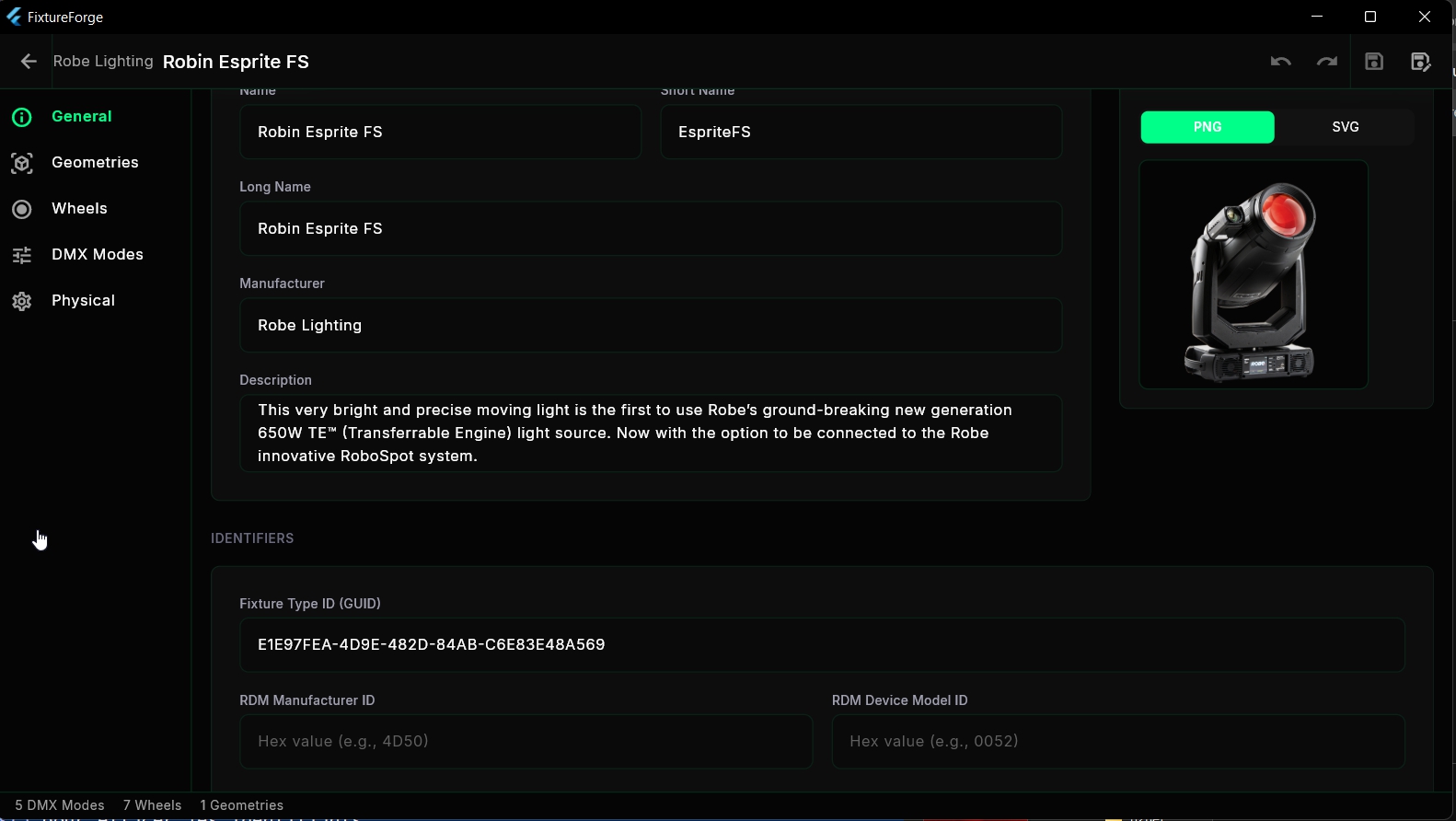
The General tab contains the basic fixture metadata. These fields identify your fixture in lighting consoles and libraries.
Required Fields
| Field | Description | Example |
|---|---|---|
| Name | Primary fixture name (must be valid for file systems) | Robin_600_LEDWash |
| Manufacturer | Company name | Robe |
| Fixture Type ID | Unique GUID identifier (auto-generated) | 12345678-... |
Optional Fields
| Field | Description |
|---|---|
| Short Name | Abbreviated name for display (e.g., "R600W") |
| Long Name | Full descriptive name (e.g., "Robin 600 LED Wash") |
| Description | Detailed description of the fixture |
| Thumbnail | Image file (PNG or SVG, max 1024×1024) |
| RefFT | Reference to parent fixture type (for variants) |
| Can Have Children | Whether this fixture can contain sub-fixtures |
- Use underscores instead of spaces in the Name field
- Include model variants in the name (e.g., "Sharpy_Plus_Aqua")
- Keep Short Name under 10 characters for console compatibility
Geometries
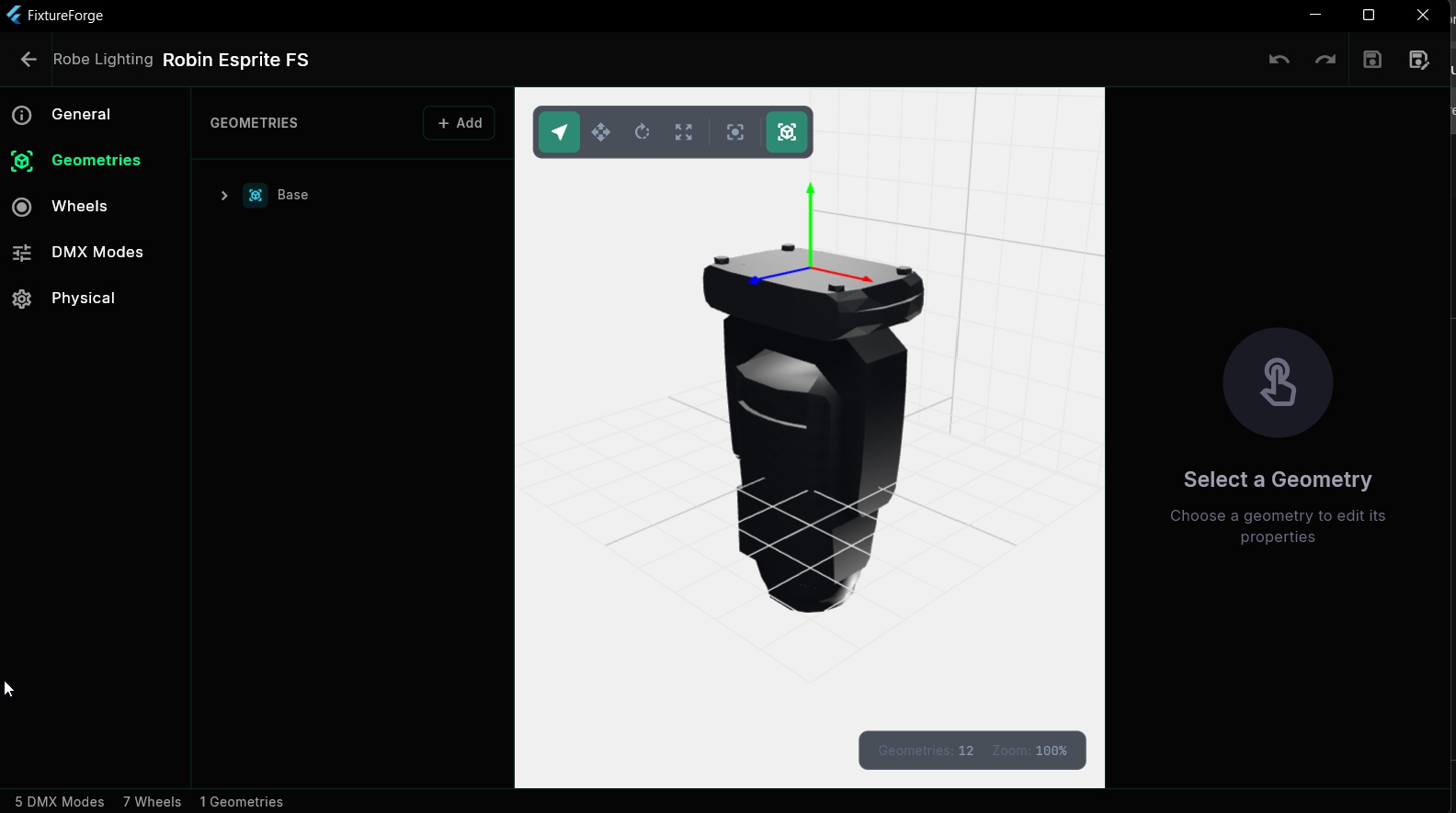
Geometries define the physical structure of your fixture. They form a hierarchical tree that represents how different parts of the fixture relate to each other (e.g., a head that moves on a yoke that sits on a base).
Geometry Tree
The geometry tree shows the parent-child relationships between fixture parts. Each geometry can have a position (4×4 transformation matrix), an optional 3D model, and type-specific properties.
Base (Geometry)
├── Yoke (Axis - Pan)
│   └── Head (Axis - Tilt)
│       ├── Lens (Beam)
│       ├── ColorWheel (FilterColor)
│       └── GoboWheel (FilterGobo)
└── PowerConnector (WiringObject)
Geometry Types
GDTF supports 18 different geometry types:
| Type | Purpose | Special Properties |
|---|---|---|
| Geometry | Generic geometry container | None |
| Axis | Rotating part (Pan/Tilt) | Rotation axis, range |
| Beam | Light output point | Lamp type, power, color temp |
| FilterBeam | Beam shaping (iris, shutters) | - |
| FilterColor | Color modification | CIE color values |
| FilterGobo | Gobo projection | Wheel reference |
| FilterShaper | Blade/shaper system | Blade orientation |
| Laser | Laser source | Protocol, color type |
| Display | Video display | Resolution, texture |
| WiringObject | Electrical connections | Connector type, power |
| Inventory | Accessories/consumables | Part numbers |
| Structure | Structural elements | - |
| Support | Mounting/rigging | Support type |
| Magnet | Attachment points | - |
| GeometryReference | Reference to other geometry | Target reference |
| MediaServerLayer | Media layer | - |
| MediaServerCamera | Camera input | - |
| MediaServerMaster | Master control | - |
Adding a Geometry
Select Parent
Click on the geometry that will be the parent of your new geometry in the tree.
Click Add
Click the "+" button or right-click and select "Add Child".
Choose Type
Select the appropriate geometry type from the dropdown menu.
Configure Properties
Set the name, position, 3D model, and type-specific properties in the Properties panel.
Each DMX channel must reference a geometry. Make sure you create all necessary geometries before defining your DMX modes.
DMX Modes
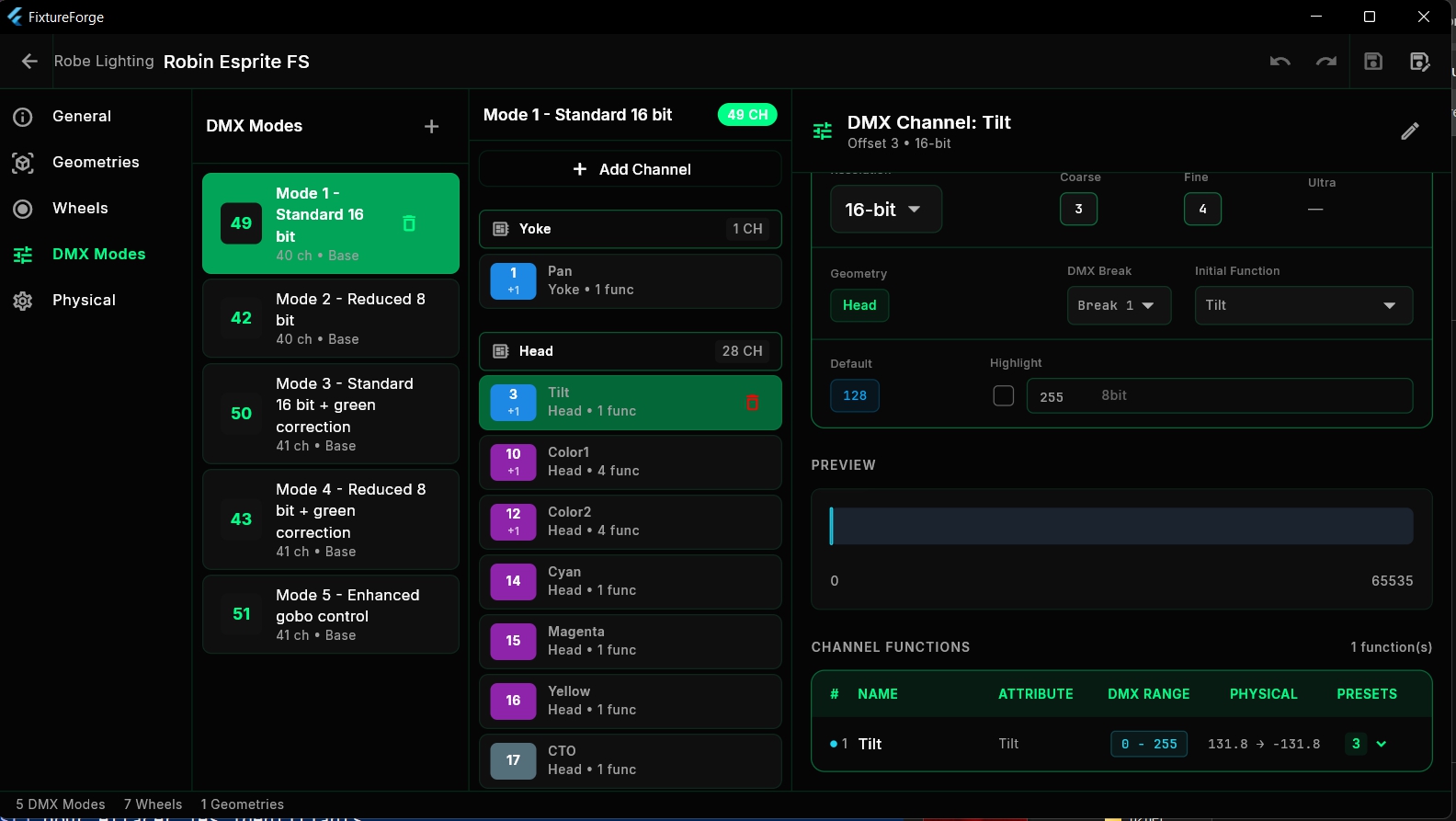
DMX Modes define how the fixture responds to DMX data. A fixture can have multiple modes with different channel counts and configurations.
Mode Structure
DMX Mode "Standard"
├── DMX Channel 1: Dimmer (8-bit)
├── DMX Channel 2: Pan (8-bit)
├── DMX Channel 3: Pan Fine (16-bit fine)
├── DMX Channel 4: Tilt (8-bit)
├── DMX Channel 5: Tilt Fine (16-bit fine)
├── DMX Channel 6: Color Wheel
│   ├── Function: Open (0-10)
│   ├── Function: Red (11-20)
│   ├── Function: Blue (21-30)
│   └── ...
└── DMX Channel 7: Gobo
Creating a DMX Mode
Add Mode
Click "Add Mode" and enter a name (e.g., "Standard", "Extended", "Basic").
Select Geometry
Choose the root geometry for this mode (usually the fixture's main body).
Add Channels
Add DMX channels one by one, specifying the offset (address), geometry, and attribute.
Define Functions
For each channel, define the channel functions (what happens at different DMX values).
Channel Properties
| Property | Description |
|---|---|
| Offset | DMX address(es). Single value for 8-bit, two values for 16-bit (e.g., [1,2]) |
| Geometry | Which part of the fixture this channel controls |
| Attribute | The standard GDTF attribute (Dimmer, Pan, Tilt, etc.) |
| Highlight | DMX value used when highlighting the fixture |
| Default | Default DMX value at startup |
Channel Functions
Channel functions define what happens at different DMX ranges:
| Property | Description | Example |
|---|---|---|
| Name | Function name | "Open", "Red", "Spin CW" |
| DMX From/To | DMX range for this function | 0-10, 11-20 |
| Physical From/To | Physical values (degrees, %, etc.) | -270° to +270° |
| Wheel | Reference to wheel (for color/gobo) | "Color Wheel 1" |
For 16-bit precision, add two offsets to the channel (e.g., [1, 2] for coarse on channel 1 and fine on channel 2). The physical range will then span across both bytes for smooth movement.
Wheels & Gobos
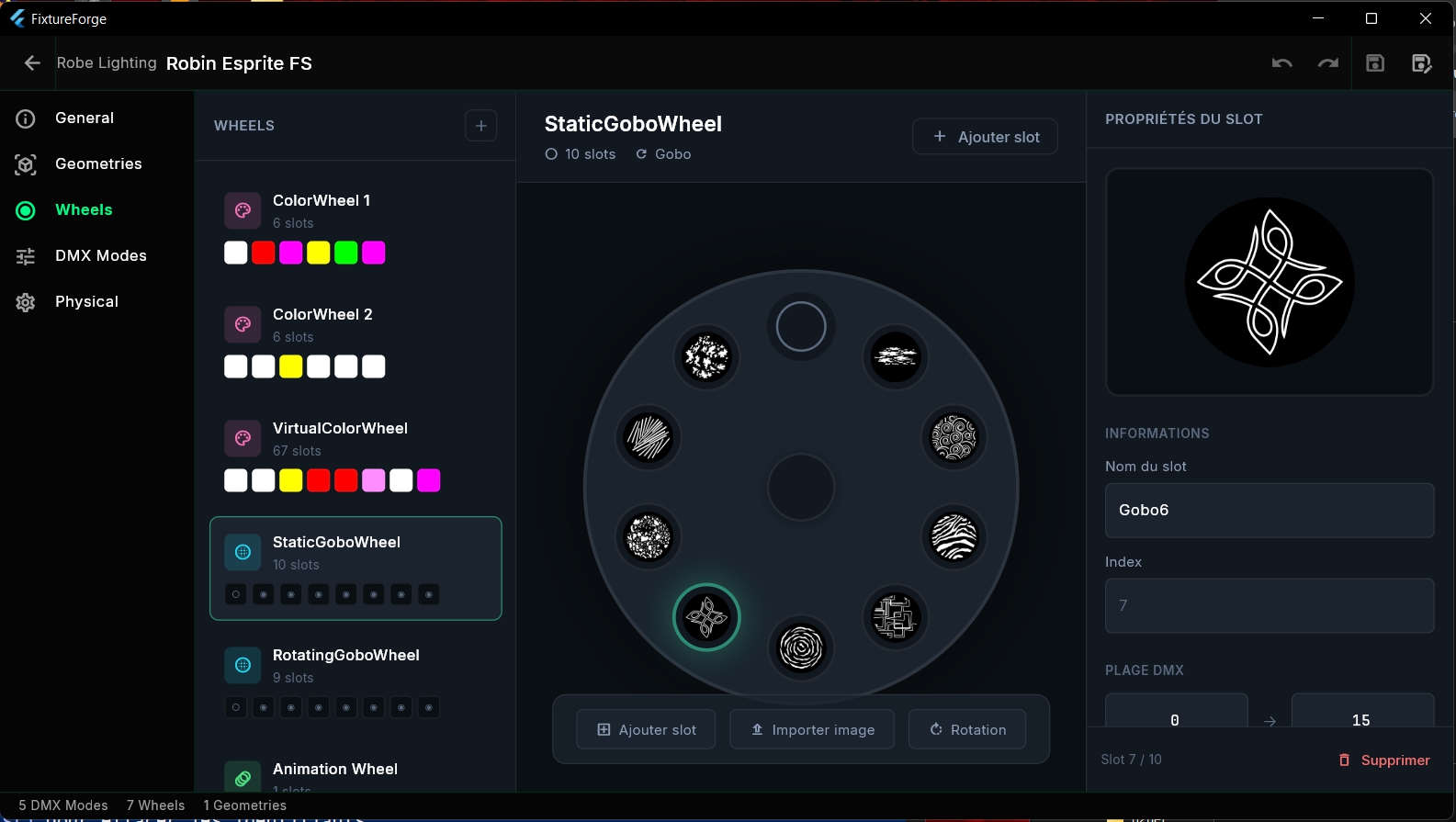
Wheels define rotating elements in your fixture like color wheels, gobo wheels, prisms, and animation wheels.
Wheel Types
- Color Wheel - Fixed color filters
- Gobo Wheel - Static or rotating gobos
- Prism - Beam multiplication optics
- Animation Wheel - Rotating effects (fire, water, etc.)
Creating a Wheel
Add Wheel
Click "Add Wheel" and enter a name (e.g., "Color Wheel 1", "Gobo Wheel 1").
Add Slots
Add slots for each position on the wheel (open, colors, gobos, etc.).
Configure Slots
For each slot, set the name, color (CIE values), or import an image.
Slot Properties
| Property | Description |
|---|---|
| Name | Slot name (e.g., "Open", "Red", "Star Gobo") |
| Color | CIE 1931 color values (x, y, Y) for color filters |
| Media File | Image file for gobo slots (PNG with transparency) |
| Facets | Number of facets (for prism slots) |
Importing Gobo Images
For gobo wheels, you can import images to visualize each slot:
- Format: PNG with transparency (alpha channel)
- Size: 256×256 pixels recommended
- Color: White on transparent background for best visualization
For color wheels, use CIE 1931 xy chromaticity coordinates. Common values:
• Red: 0.64, 0.33
• Green: 0.30, 0.60
• Blue: 0.15, 0.06
• White (D65): 0.3127, 0.3290
Physical Properties
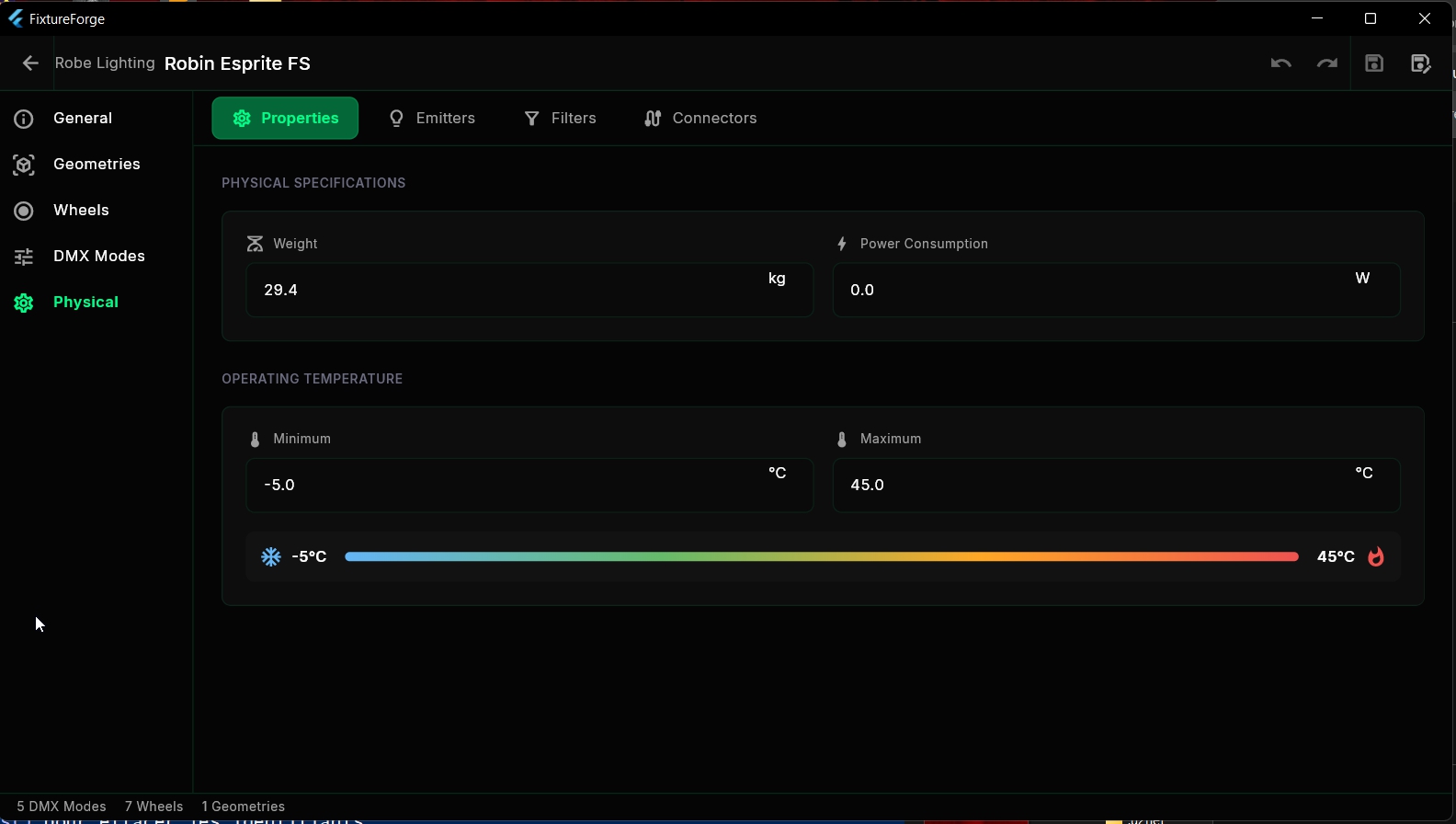
Physical properties describe the real-world characteristics of your fixture including weight, power consumption, and optical properties.
Physical Descriptions
| Property | Description | Unit |
|---|---|---|
| Weight | Total fixture weight | kg |
| Power Consumption | Maximum power draw | Watts |
| Operating Temperature | Min/max operating temperature range | °C |
Emitters
Define the light sources in your fixture:
- Name - Emitter identifier
- Color - CIE color temperature or RGB values
- Dominant Wavelength - For LED sources (nm)
- Luminous Flux - Light output (lumens)
Connectors
Define electrical and data connections:
- Type - Connector type (PowerCon, XLR5, RJ45, etc.)
- Gender - Input or Output
- DMX Break - For multi-universe fixtures
Filters
Define optical filters with their color modification properties:
- Name - Filter identifier
- Color - CIE color modification
3D Viewer
The integrated 3D viewer allows you to visualize your fixture's geometry in real-time. It displays the hierarchical structure and helps verify positions and orientations.
Navigation Controls
| Action | Control |
|---|---|
| Rotate | Left-click + drag |
| Pan | Right-click + drag or Middle-click + drag |
| Zoom | Scroll wheel |
| Reset View | Double-click or Home key |
| Select Geometry | Click on 3D model |
3D Model Import
FixtureForge supports the following 3D formats:
- glTF/GLB - Recommended format, best compatibility
- 3DS - Legacy support
Model Guidelines
- Export with Y-up coordinate system
- Center the model on its rotation axis
- Use meters as the unit (1 unit = 1 meter)
- Optimize polygon count for performance
- Include materials and textures as needed
Clicking on a geometry in the 3D viewer automatically selects it in the tree view, and vice versa. This makes it easy to navigate complex fixtures.
grandMA3 Support
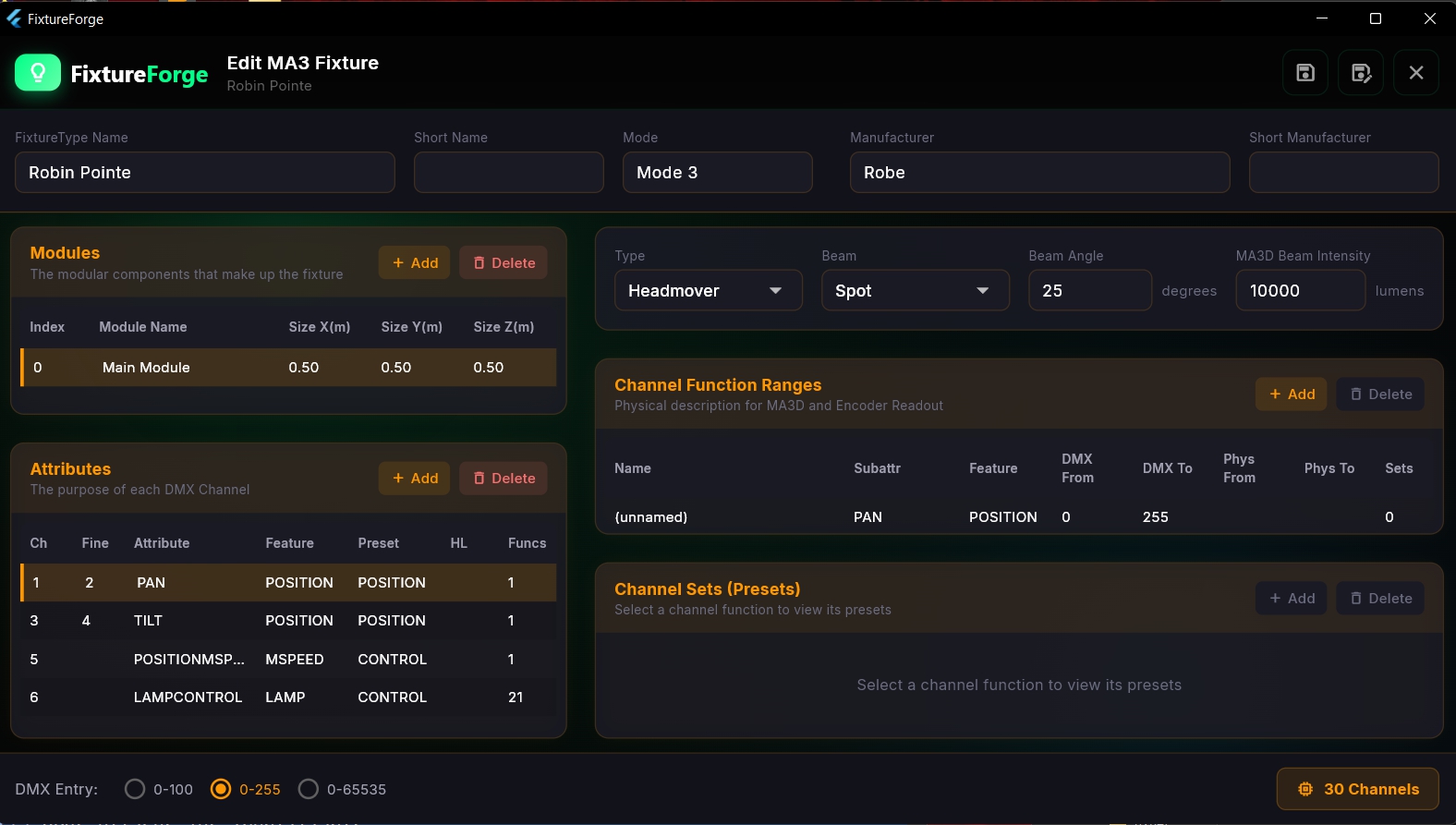
FixtureForge provides comprehensive support for grandMA3 fixture files, allowing you to edit existing fixtures and convert between MA3 and GDTF formats.
MA3 vs GDTF
| Feature | grandMA3 | GDTF |
|---|---|---|
| 3D Models | ❌ Not included | ✅ Included (GLB) |
| Wheel Images | ❌ Not included | ✅ Included (PNG) |
| Complex Geometry | ❌ Basic (x,y,z size) | ✅ Full hierarchy |
| Photometric Data | ❌ Limited | ✅ Complete |
| Console Compatibility | MA only | Universal |
| Library Size | 31,000+ fixtures | Growing |
Opening MA3 Files
FixtureForge can directly open grandMA3 fixture files. The file format uses a binary header followed by XML data.
grandMA3 fixture files are typically stored in:
C:\ProgramData\MALightingTechnology\gma3_library\datapools\fixture\
grandMA3 Library Browser
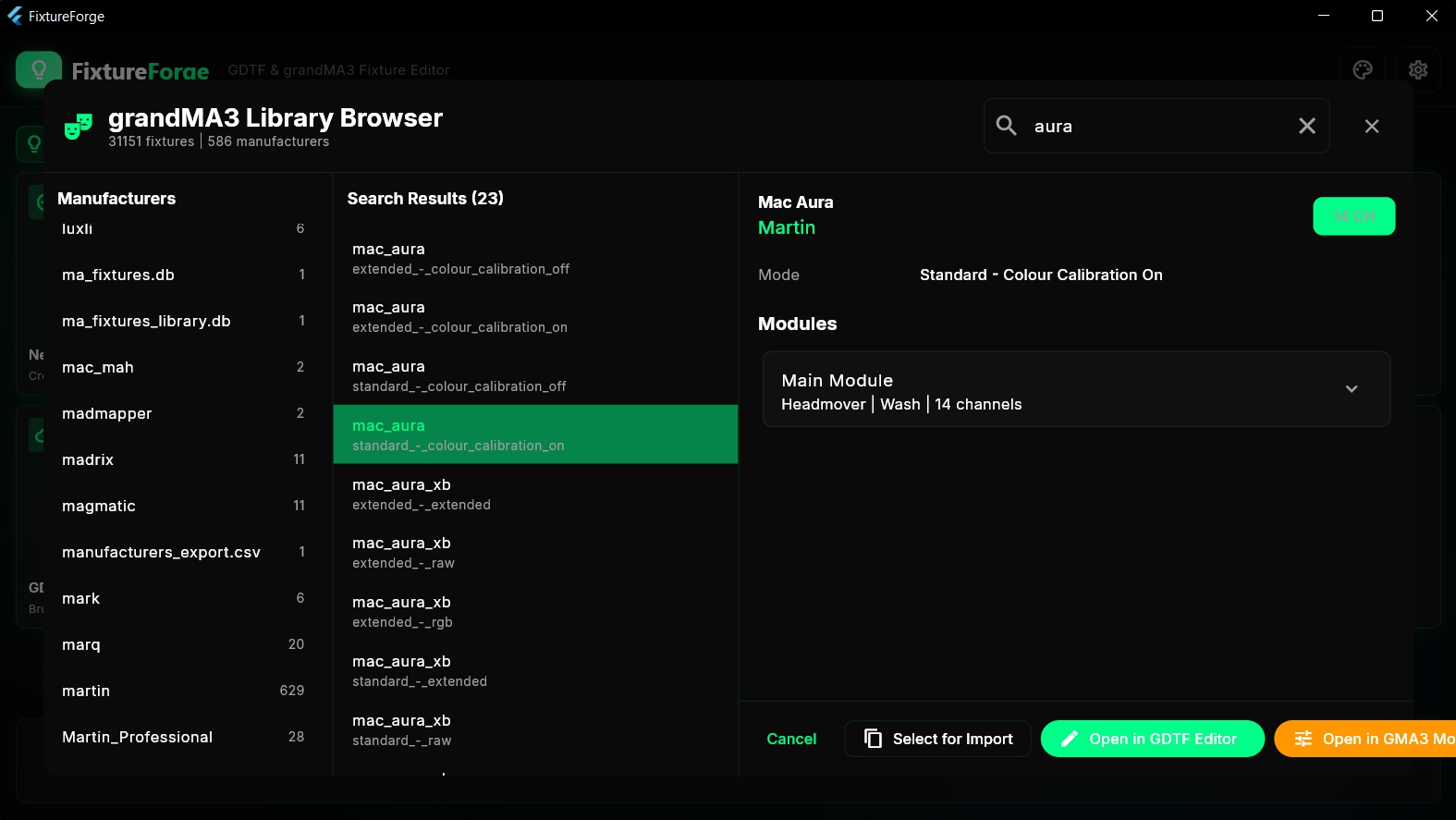
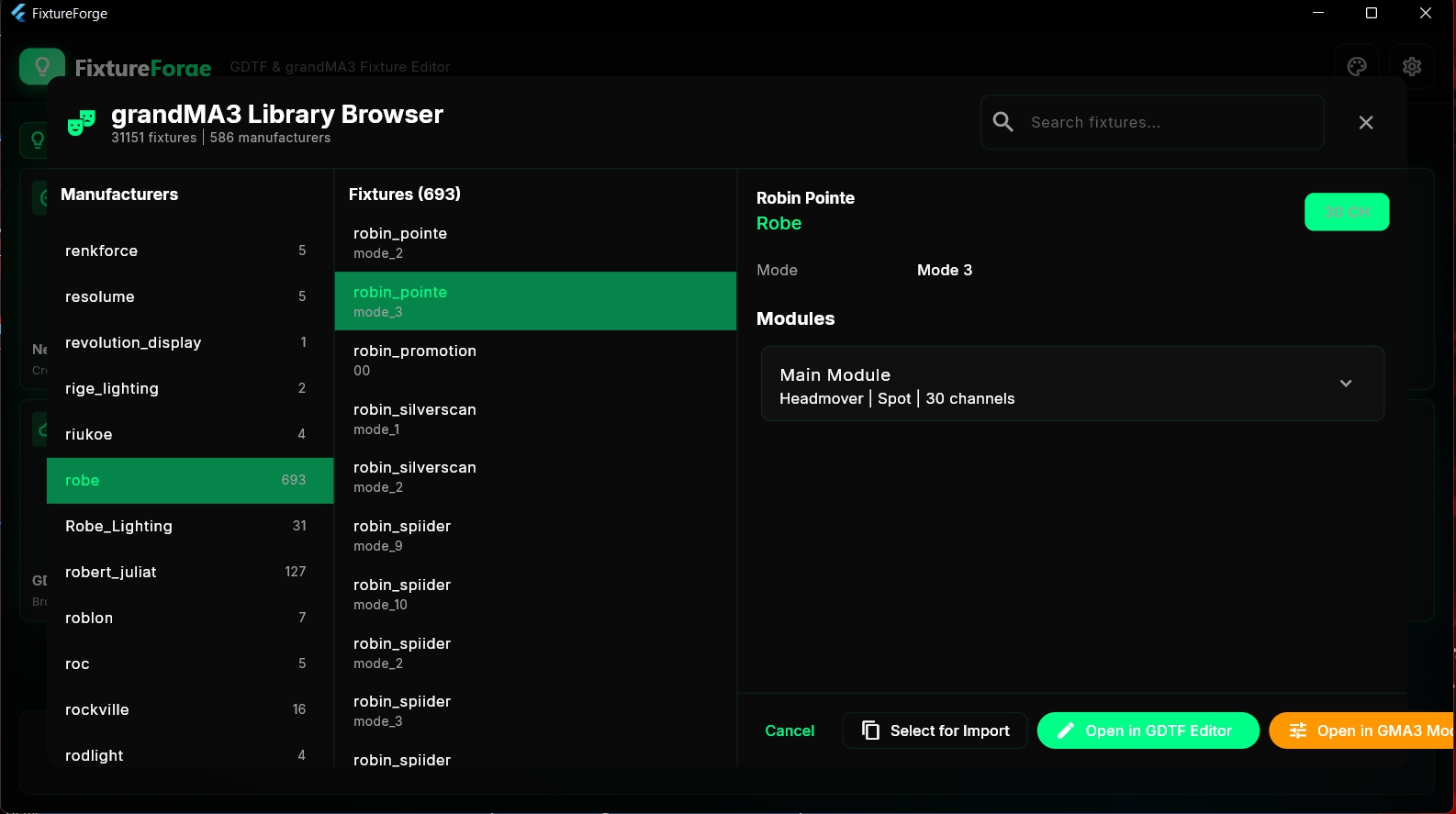
FixtureForge includes the complete grandMA3 fixture library with over 31,000 fixtures from 586 manufacturers.
Features
- 31,151 fixtures from 586 manufacturers
- Real-time search with instant filtering
- Manufacturer filter for quick navigation
- Preview details before opening
- Direct opening in GDTF or MA3 editor
Using the Library
Open Library Browser
From the home screen, click "grandMA3 Library" to open the browser.
Search or Browse
Use the search bar or filter by manufacturer to find fixtures.
Preview
Click on a fixture to see its details, modes, and channel count.
Open or Convert
Choose to open in the editor or convert directly to GDTF format.
Format Conversion
FixtureForge can convert fixtures between GDTF and grandMA3 formats in both directions.
MA3 → GDTF Conversion
When converting from MA3 to GDTF:
- ✅ All DMX data is preserved
- ✅ Channel functions and sets are converted
- ✅ Basic geometry is created
- ⚠️ No 3D models (MA3 doesn't include them)
- ⚠️ No wheel images (MA3 doesn't include them)
GDTF → MA3 Conversion
When converting from GDTF to MA3:
- ✅ DMX data is preserved
- ✅ Attributes are mapped to MA equivalents
- ⚠️ 3D models are NOT included (MA3 format limitation)
- ⚠️ Wheel images are NOT included (MA3 format limitation)
- ⚠️ Complex geometry hierarchy is simplified
Attribute Mapping
FixtureForge automatically maps between GDTF and MA3 attributes:
| GDTF Attribute | grandMA3 Attribute |
|---|---|
| Dimmer | DIM |
| Pan | PAN |
| Tilt | TILT |
| Shutter1 | SHUTTER |
| Iris | IRIS |
| Focus1 | FOCUS |
| Zoom | ZOOM |
| Gobo1 | GOBO |
| ColorAdd_R/G/B | COLOR |
| CTO | CTO |
| Prism1 | PRISM |
| Frost1 | FROST |
Converting from GDTF to MA3 results in data loss because the MA3 format doesn't support 3D models, wheel images, or complex geometry hierarchies. Always keep your original GDTF files!
Fixture Finder
The Fixture Finder helps you locate fixtures in the library by building a DMX channel sequence. This is useful when you know how a fixture's channels are laid out but don't know the fixture name.

How It Works
Build Your Sequence
Select attributes in the order they appear in your unknown fixture (e.g., Dimmer, Pan, Pan Fine, Tilt, Tilt Fine...).
Search
FixtureForge searches the library for fixtures matching your sequence.
Review Results
Browse matching fixtures and compare their full channel layouts.
Search Modes
- Strict - Exact match of your sequence
- Flexible - Allows some variation in order
- Partial - Matches fixtures containing your sequence
Start with a partial sequence of the first 5-10 channels. This usually gives enough matches to identify the fixture without needing the complete layout.
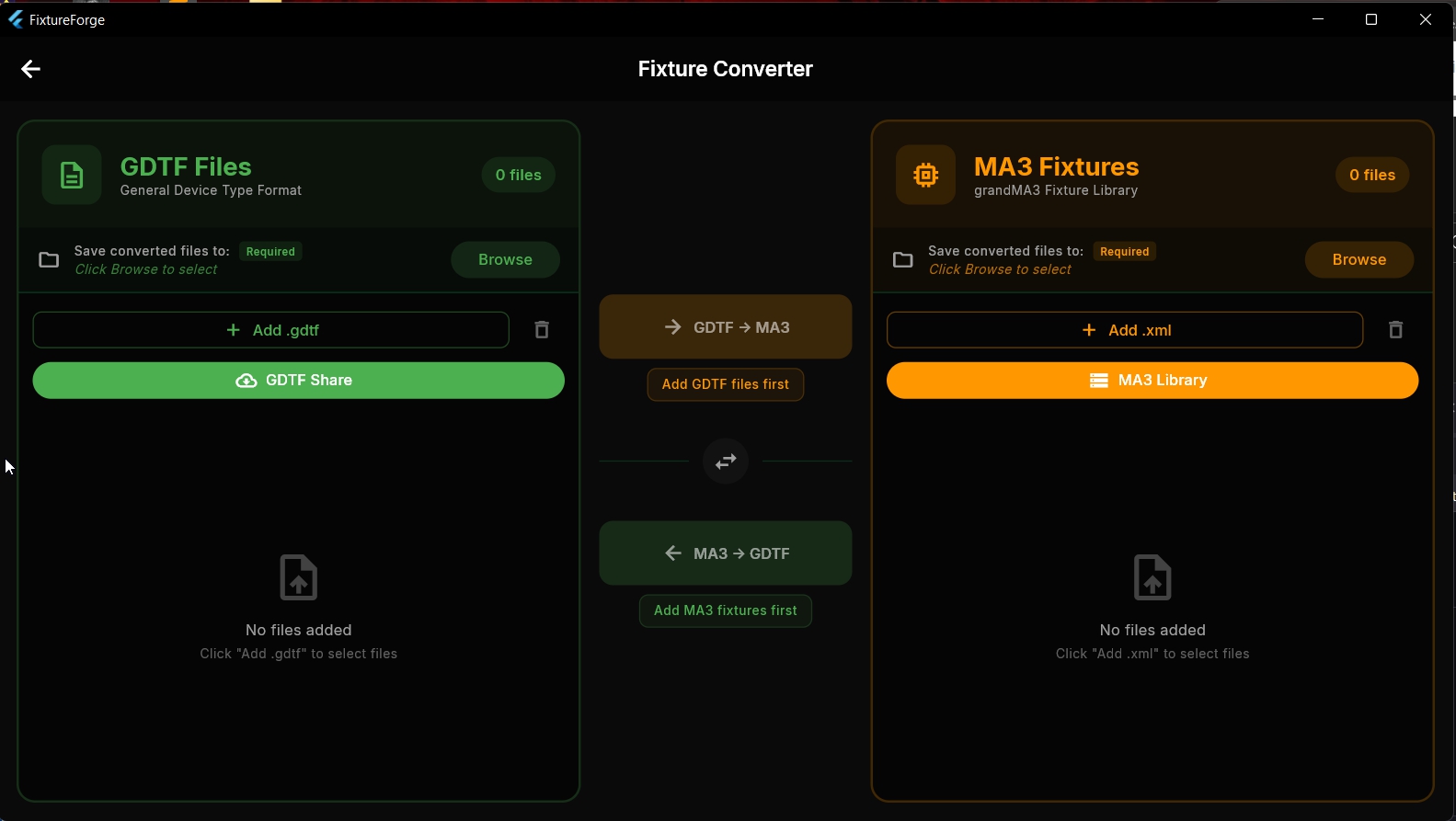
Batch Converter
The Batch Converter allows you to convert multiple fixtures at once between GDTF and MA3 formats.
Features
- Convert entire folders of fixtures
- Bidirectional: GDTF ↔ MA3
- Progress tracking with detailed logs
- Skip or overwrite existing files
- Organize output by manufacturer
Using the Batch Converter
Select Source
Choose the folder containing your fixtures or select from the built-in library.
Choose Destination
Select the output folder for converted files.
Configure Options
Set options like subfolder organization and file handling.
Start Conversion
Click "Convert All" or select specific fixtures to convert.
Options
| Option | Description |
|---|---|
| Create subfolders by manufacturer | Organize output files into manufacturer-named folders |
| Skip existing files | Don't overwrite files that already exist in the destination |
| Generate report | Create a conversion report with success/failure details |
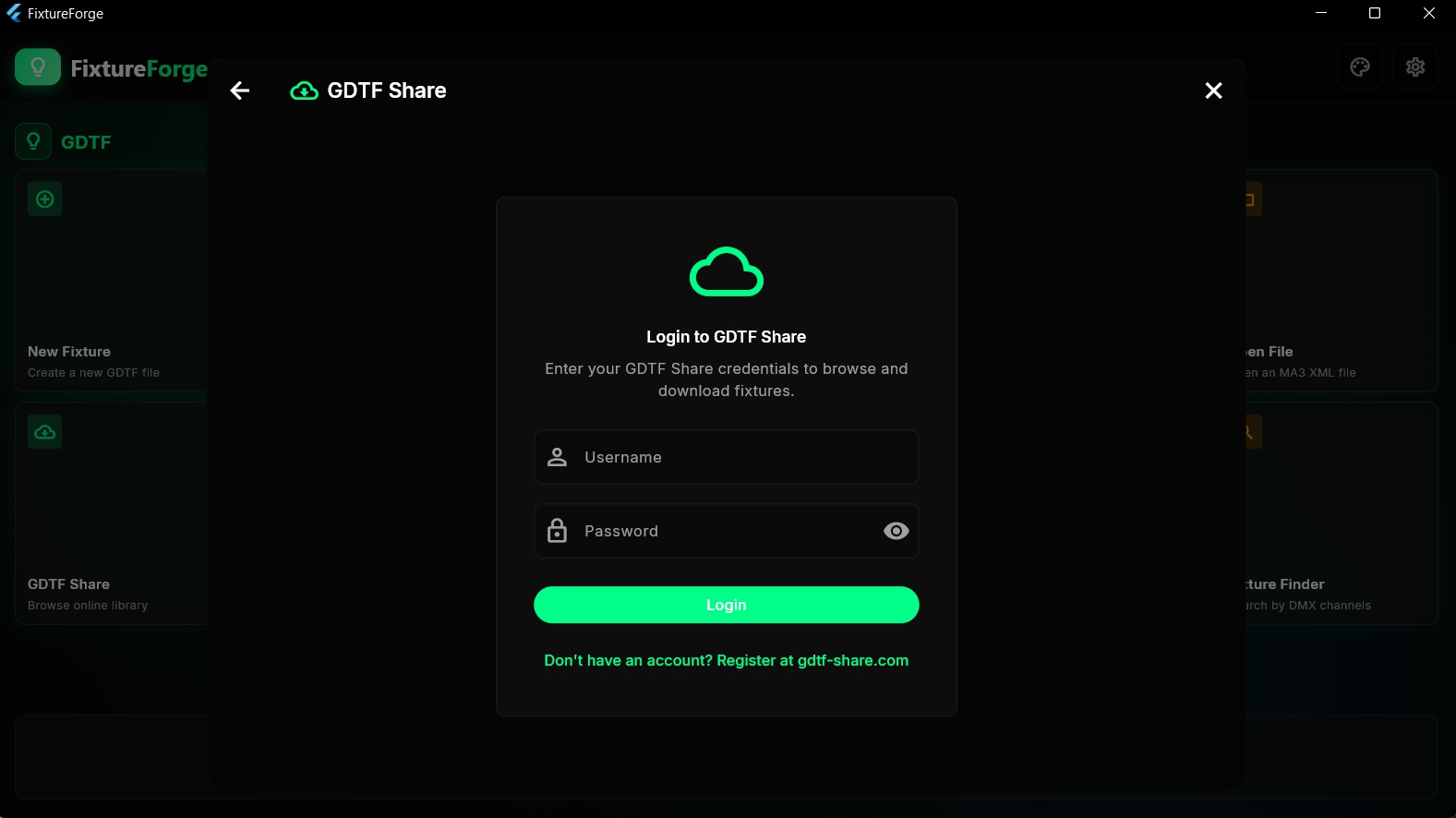
GDTF Share Integration
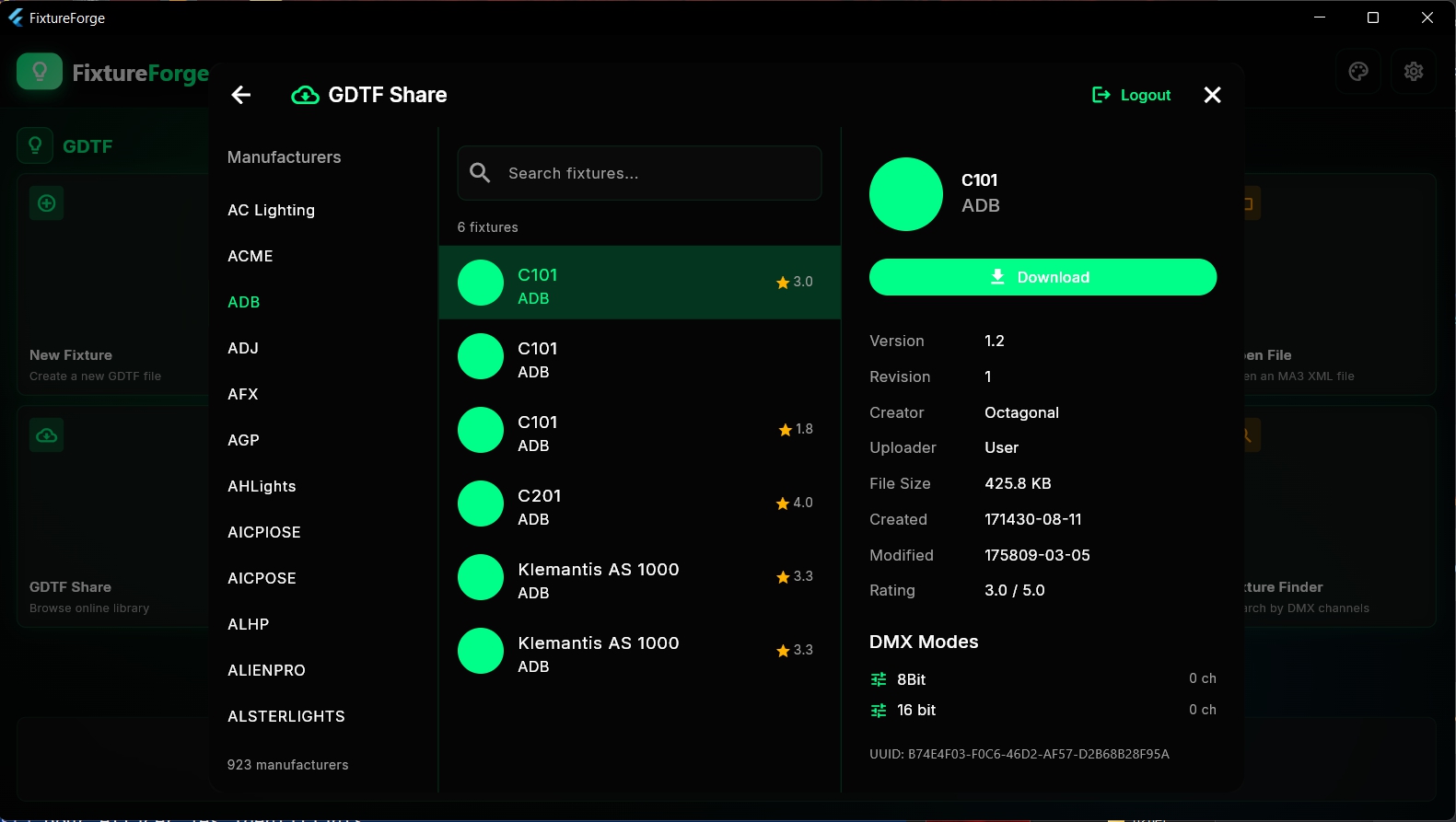
GDTF Share is the official cloud library for GDTF fixture files. FixtureForge integrates directly with this service.
Features
- Browse 923+ manufacturers
- Search thousands of fixtures
- View community ratings and reviews
- One-click download and import
- Access revision history
Connecting to GDTF Share
GDTF Share access works with or without an account:
- Without account - Browse and download public fixtures
- With account - Access additional features, upload your own fixtures
To upload fixtures or access all features, create a free account at gdtf-share.com
General Settings
Access settings through the gear icon in the top-right corner or press Ctrl + ,.
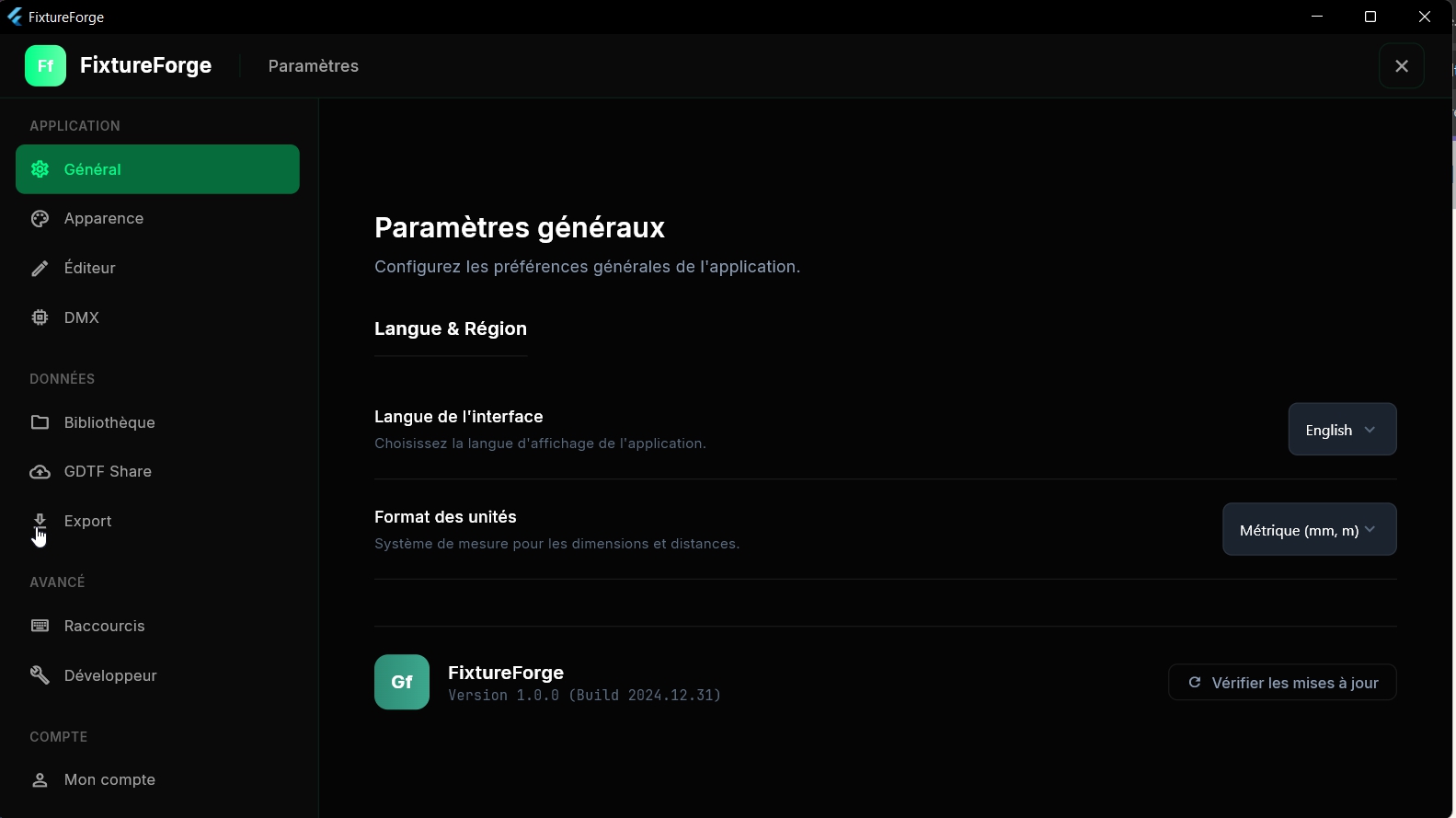
General Options
| Setting | Description |
|---|---|
| Auto-save | Automatically save your work at regular intervals |
| Auto-save interval | Time between auto-saves (1, 5, 10, or 30 minutes) |
| Default GDTF version | Version used when creating new files (1.0, 1.1, or 1.2) |
| Validation | Enable real-time validation of your fixture |
Themes
FixtureForge includes multiple premium themes to customize your workspace.
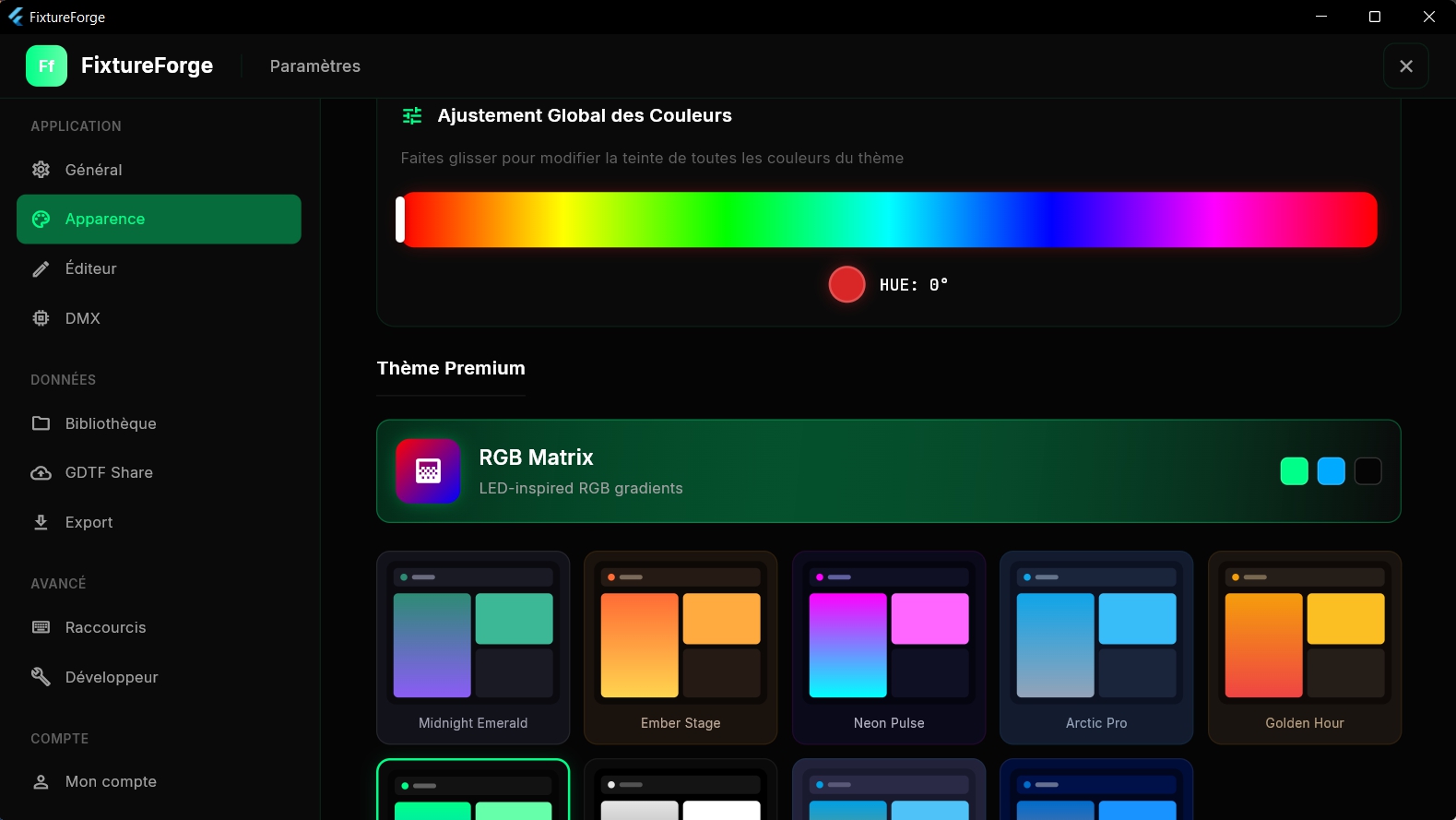
Theme Options
- Dark (Default) - Professional dark theme with teal accent
- RGB Matrix - LED-inspired colorful theme
- Custom Hue - Adjust the global hue (0-360°) to create your perfect color scheme
Hue Adjustment
Use the hue slider to shift all interface colors while maintaining contrast and readability. This allows you to match FixtureForge to your personal preference or studio branding.
Changes to the theme are applied in real-time, so you can see exactly how your workspace will look before committing to a setting.
Language
FixtureForge is available in multiple languages:
- 🇬🇧 English (Default)
- 🇫🇷 Français
To change the language:
- Open Settings (Ctrl + ,)
- Go to the General section
- Select your preferred language from the dropdown
- The interface will update immediately
Standard Attributes
GDTF defines standard attributes for fixture control. Using these ensures compatibility across consoles and visualizers.
Position
| Pan | Horizontal rotation |
| Tilt | Vertical rotation |
| PanRotate | Continuous pan rotation |
| TiltRotate | Continuous tilt rotation |
Dimmer
| Dimmer | Intensity control |
| DimmerCurve | Dimmer response curve |
Shutter
| Shutter1 | Main shutter/strobe |
| ShutterStrobe | Strobe rate |
| ShutterStrobePulse | Pulse strobe effect |
Color
| ColorAdd_R | Red (additive) |
| ColorAdd_G | Green (additive) |
| ColorAdd_B | Blue (additive) |
| ColorAdd_W | White (additive) |
| ColorSub_C | Cyan (subtractive) |
| ColorSub_M | Magenta (subtractive) |
| ColorSub_Y | Yellow (subtractive) |
| Color1 | Color wheel 1 |
| Color2 | Color wheel 2 |
| CTO | Color temperature orange |
| CTC | Color temperature correction |
| CTB | Color temperature blue |
| ColorMacro1 | Color macro/preset |
Beam
| Iris | Iris diameter |
| IrisStrobe | Iris strobe effect |
| Zoom | Beam angle |
| Focus1 | Focus adjustment |
| Frost1 | Frost filter |
Gobo
| Gobo1 | Gobo wheel 1 selection |
| Gobo1Pos | Gobo 1 rotation position |
| Gobo1PosRotate | Gobo 1 continuous rotation |
| Gobo2 | Gobo wheel 2 selection |
| Gobo2Pos | Gobo 2 rotation position |
Prism
| Prism1 | Prism insertion |
| Prism1Pos | Prism rotation position |
| Prism1PosRotate | Prism continuous rotation |
Effects
| Effects1 | Effect wheel 1 |
| Effects1Rate | Effect 1 speed |
| Effects1Fade | Effect 1 fade |
Control
| Control1 | Fixture control channel |
| LampControl | Lamp on/off/strike |
| Fan1 | Fan speed control |
Geometry Types Reference
Complete reference for all 18 GDTF geometry types:
| Type | Description | Use Case |
|---|---|---|
| Geometry | Generic container | Base, body, non-functional parts |
| Axis | Rotating element | Pan/tilt mechanisms, rotating heads |
| Beam | Light output point | Lens, light source |
| FilterBeam | Beam modification | Iris, shutters, barn doors |
| FilterColor | Color modification | CMY flags, color wheels |
| FilterGobo | Pattern projection | Gobo wheels (static/rotating) |
| FilterShaper | Beam shaping | Framing shutters, blade systems |
| Laser | Laser source | Laser fixtures |
| Display | Video output | LED panels, video fixtures |
| WiringObject | Electrical connections | Power/DMX connectors |
| Inventory | Replaceable items | Lamps, fuses, accessories |
| Structure | Structural elements | Frames, brackets |
| Support | Mounting hardware | Yokes, brackets, clamps |
| Magnet | Attachment points | Magnetic accessory mounts |
| GeometryReference | Reference to another geometry | Multi-cell fixtures, repeated elements |
| MediaServerLayer | Media layer | Media server outputs |
| MediaServerCamera | Camera input | Video inputs |
| MediaServerMaster | Master control | Global media server control |
Keyboard Shortcuts
File Operations
| Shortcut | Action |
|---|---|
| Ctrl + N | New fixture |
| Ctrl + O | Open file |
| Ctrl + S | Save |
| Ctrl + Shift + S | Save As |
| Ctrl + E | Export |
| Ctrl + W | Close |
Edit Operations
| Shortcut | Action |
|---|---|
| Ctrl + Z | Undo |
| Ctrl + Y | Redo |
| Ctrl + C | Copy |
| Ctrl + V | Paste |
| Ctrl + D | Duplicate |
| Delete | Delete selected |
Navigation
| Shortcut | Action |
|---|---|
| Ctrl + 1 | General tab |
| Ctrl + 2 | Geometry tab |
| Ctrl + 3 | DMX tab |
| Ctrl + 4 | Wheels tab |
| Ctrl + 5 | Physical tab |
| Ctrl + , | Settings |
| F1 | Help / Manual |
3D Viewer
| Shortcut | Action |
|---|---|
| Home | Reset view |
| F | Frame selected |
| 1 | Front view |
| 2 | Back view |
| 3 | Left view |
| 4 | Right view |
| 5 | Top view |
| 6 | Bottom view |
Frequently Asked Questions
When adding a DMX channel, specify two offsets in the Offset field (e.g., [1, 2]). The first is the coarse (MSB) channel and the second is the fine (LSB) channel. FixtureForge will automatically handle the 16-bit resolution for physical values.
Yes! Copy the fixture file from your grandMA3 library folder (typically in ProgramData/MALightingTechnology/gma3_library/datapools/fixture/) and open it directly in FixtureForge. You can then edit it and export as GDTF.
Check that your 3D models are in glTF or GLB format and are properly referenced in the geometry. Also verify that the models are located in the correct folder within the GDTF archive (models/gltf/).
FixtureForge includes built-in validation. Look for the validation status in the status bar at the bottom of the editor. You can also validate against the official GDTF builder at gdtf-share.com.
Each version adds new features and elements. Version 1.2 (current) supports all features including advanced geometry types and protocols. Most consoles support 1.1 or later. Use 1.2 unless you need compatibility with older systems.
Yes! Use the Batch Converter tool from the home screen. You can convert entire folders between GDTF and MA3 formats, with options for organizing output by manufacturer.
Go to the Attributes section and add a custom attribute definition. Give it a unique name and assign it to a feature group. You can then use this attribute in your DMX channels.
When converting from MA3 to GDTF, 3D models cannot be included because the MA3 format doesn't contain them. You'll need to add 3D models manually after conversion or use generic placeholder models.